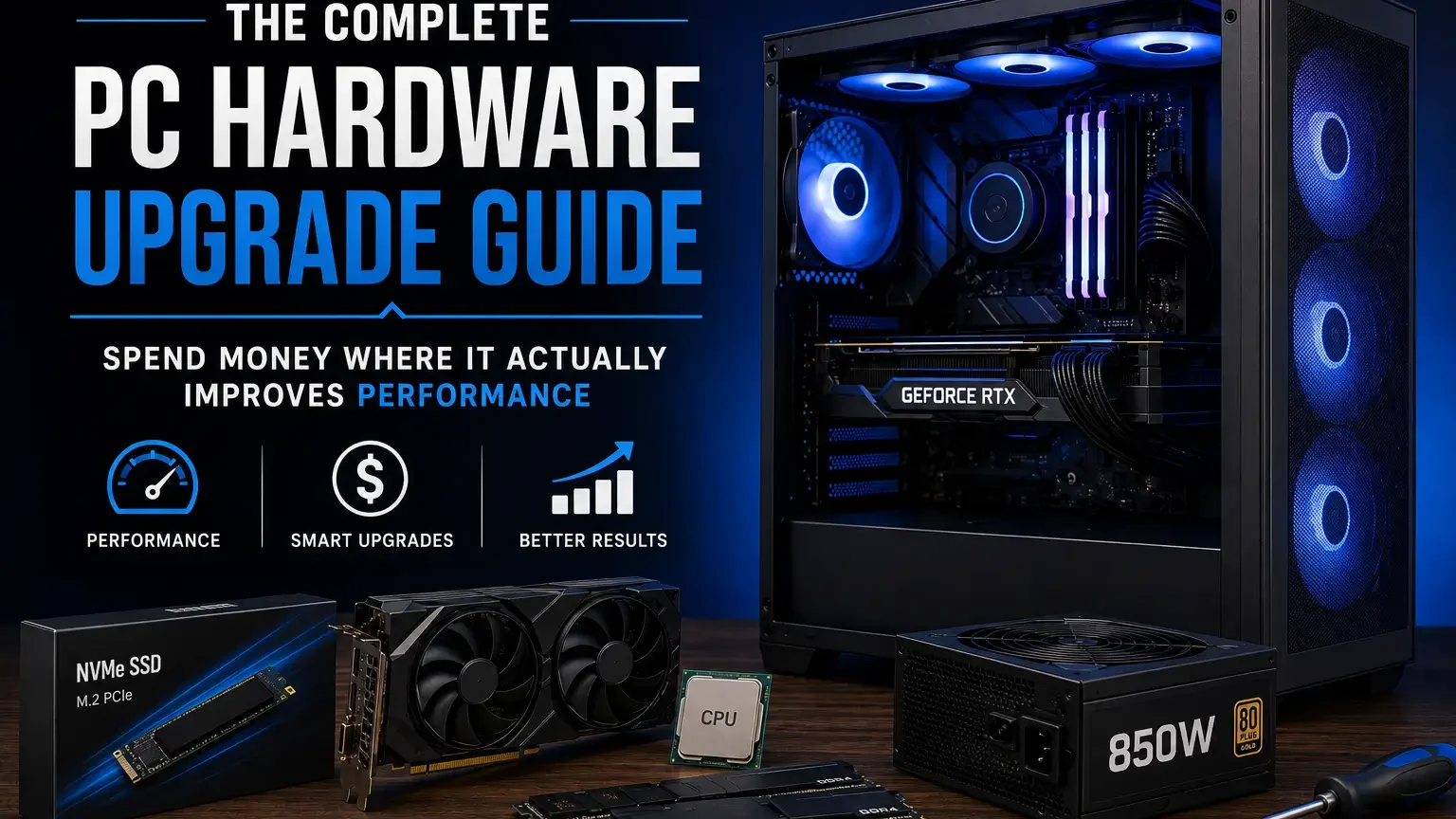
PC hardware upgrades are exciting because one well-chosen part can make an old system feel useful again. They are also risky because a poorly chosen part can consume the whole budget without solving the problem that bothered you in the first place. The goal of this guide is to make upgrading feel less like guessing and more like a practical decision process. Instead of chasing every new launch, you will learn how to read symptoms, choose priorities, check compatibility, and spend money where it has the clearest effect.
This article is written for readers who want a computer that feels faster, smoother, quieter, and more reliable without wasting money on parts that do not fit their real needs. It covers CPUs, GPUs, memory, storage, motherboards, power supplies, cooling, monitors, maintenance, and the point where upgrading no longer makes sense. For a deeper look at heat, noise, airflow, and power behavior, see our related guide to PC airflow, cooling and power stability. If your biggest concern is whether a motherboard, DDR5 memory kit, or NVMe drive will actually work together, read the companion hardware compatibility guide for motherboards, DDR5 and NVMe SSDs.
Evergreen upgrade advice does not mean ignoring new technology. It means building a method that remains useful even as product names change. The names on the boxes will evolve, but the questions stay the same: what is slow, why is it slow, what part removes the limit, what support parts are required, and how will you confirm that the upgrade worked?
Quick Upgrade Map
Use this table as a first filter, not as a final diagnosis. The same symptom can have more than one cause, but mapping the problem to the most likely area prevents random shopping and gives you a better starting point.
| Symptom | Likely Area to Check First | Why It Matters |
|---|---|---|
| Games look good but feel choppy in busy scenes | CPU, memory, background tasks, storage stalls | Average frame rate can hide inconsistent frame pacing. |
| Games run slowly when resolution or visual quality is raised | GPU and display target | Higher resolution and visual detail usually shift load toward the graphics card. |
| Apps take a long time to launch | SSD health, free space, storage interface | The system may be waiting on storage before CPU or GPU power matters. |
| Browser tabs reload or heavy projects pause | RAM capacity | The system may be using storage as overflow memory. |
| Performance starts well then drops | Cooling, airflow, power behavior | Heat or unstable power can reduce sustained performance. |
| New hardware will not fit or boot | Motherboard, case, BIOS, PSU connectors | Compatibility details decide whether the upgrade is truly drop-in. |
Start With the Workload, Not the Component
A smart PC upgrade begins by naming the job the computer must do better: smoother games, faster project exports, quieter everyday use, more storage space, fewer freezes, or a longer useful life. For most readers, the useful question is not whether a component looks impressive on a spec sheet, but whether it removes a real limitation in the system they already use. A gamer chasing higher frame rates has different priorities from a student opening dozens of browser tabs, and both are different from a creator who waits on video timelines. That makes the upgrade process calmer, cheaper, and much easier to defend after the excitement of buying new hardware has faded.
A practical way to begin is to collect a small set of observations before shopping. Watch CPU usage, GPU usage, memory pressure, drive activity, temperatures, and power behavior while doing the exact task that feels slow. These clues often reveal more than a quick comparison chart because they come from your own workloads, games, display resolution, software habits, room temperature, and tolerance for noise. Hardware becomes easier to choose when the problem is described in plain language first.
The decision should then follow the workload instead of the marketing cycle. If the graphics card is fully loaded while the processor is relaxed, the GPU is the likely target; if the system stutters while memory is full, RAM or background cleanup may matter more; if booting and launching apps feels slow, storage may be the cheapest win. A balanced system rarely comes from buying the single fastest part in one category; it comes from removing the weakest link while leaving enough budget for supporting parts that keep the machine stable over time.
The common trap is to treat every upgrade as a fresh build. Many people buy a new processor because it sounds like the heart of the PC, then discover that their old graphics card, small SSD, weak cooling, or limited memory was the real reason the machine felt tired. A better approach is to protect the parts that still serve you well, replace only what has a measurable purpose, and leave a path for the next improvement. Begin with the task, measure the symptom, and only then choose the part.
- Write down the main task that feels slow.
- Check usage and temperatures during that task.
- Upgrade the limiting component first, not the most advertised one.
Create a Simple Inventory Before You Shop
The most useful upgrade tool is a complete inventory of the system you already own, because compatibility problems often come from forgotten details rather than from the headline component. A motherboard model, power-supply capacity, case size, cooler height, memory configuration, storage slots, BIOS version, monitor resolution, and operating-system drive all influence what makes sense.
Open the side panel if needed, confirm the motherboard model from the board or firmware, read the power-supply label, measure GPU clearance, and note whether memory occupies two slots or four.
This inventory tells you which upgrades are drop-in, which require a firmware update, which demand a stronger power supply, and which are better saved for a full platform replacement.
Skipping the inventory can lead to a graphics card that blocks front fans, a cooler that hits the case glass, a memory kit that refuses to run at its advertised profile, or an SSD that shares lanes with another slot. A ten-minute audit often prevents days of returns, troubleshooting, and wasted shipping.
- Record motherboard, CPU, RAM, GPU, PSU, case, cooler, and storage.
- Check physical clearances, not only electrical support.
- Save BIOS and driver versions before changing parts.
Understand the Difference Between a Bottleneck and Normal Load
A bottleneck is not simply a component reaching high usage; it is the component that prevents the rest of the system from doing useful work in your specific situation. In a game, full GPU usage can be healthy because the graphics card is doing exactly what it was bought to do, while full CPU usage with low GPU usage may indicate the processor is holding frame rates back.
Compare usage with frame-time consistency, stutter, resolution, graphics settings, background tasks, and whether performance improves when you lower visual quality.
If lowering resolution dramatically raises frame rate, the GPU was likely limiting performance; if resolution changes do little but busy scenes still stutter, the CPU, memory, game engine, or background software may deserve attention.
People often use a single percentage reading as proof, but brief spikes and averages can hide frame pacing, shader compilation, thermal throttling, or storage-related stalls. Read performance behavior as a pattern, not a single number.
- Look for repeated symptoms, not isolated spikes.
- Use the same scene or workload when comparing changes.
- Separate average speed from smoothness.
Upgrade the Graphics Card When Visual Work Is the Limit
The graphics card is usually the most visible upgrade for gaming, 3D work, GPU-accelerated effects, high-resolution monitors, and demanding visual workloads. A GPU upgrade makes sense when the current card is consistently near full load, visual settings must be lowered more than you like, or the monitor is capable of more than the card can deliver.
Check power connectors, case length, slot thickness, monitor ports, power-supply quality, and whether your processor can feed the card well enough for the target resolution.
For high-refresh competitive play, balance the GPU with CPU strength; for 1440p or 4K visual quality, the GPU carries more weight; for creator software, check whether the specific apps actually use GPU acceleration for the tasks you perform.
A powerful card can still disappoint if it is squeezed into a hot case, paired with a low-quality power supply, or used on a display that cannot show the extra frames or detail. Buy the graphics card for the monitor and workload you have, not only for the highest model name you can afford.
- Match GPU choice to resolution and refresh rate.
- Verify PSU connectors and case clearance.
- Consider cooling and noise, not only raw speed.
Replace the CPU When Responsiveness, Simulation or High Frame Rates Demand It
The processor affects general responsiveness, background multitasking, game simulation, compile time, encoding, decompression, and the ability to keep a fast graphics card busy. CPU upgrades are most rewarding when software uses the cores well or when a game depends heavily on per-core performance and stable frame pacing.
Watch CPU usage per core, frame-time spikes, export times, compile times, and whether the GPU sits underused during scenes that should be graphically demanding.
A drop-in CPU upgrade can be excellent when the motherboard supports it, but if the platform is old, a motherboard and memory change may provide a cleaner path than forcing one more processor into a tired socket.
Buying the strongest processor available for an old board can create cooling, firmware, or power-delivery concerns that erase the value of the upgrade. The right CPU upgrade should improve the tasks you notice every day and still fit the platform comfortably.
- Check socket and BIOS support before ordering.
- Make sure the cooler can handle the replacement CPU.
- Avoid overspending if the GPU or storage is the real limit.
Add Memory When the System Runs Out of Breathing Room
RAM upgrades do not make every task faster, but they can transform a computer that constantly swaps data to storage or struggles with large projects, virtual machines, heavy browsers, or modern games running beside chat and capture tools. The upgrade is especially noticeable when the system pauses, reloads tabs, closes background apps, or becomes rough after several programs are open.
Check memory usage during your heaviest normal session, count modules and slots, confirm whether the board uses DDR4 or DDR5, and note the rated speed and timings of the existing kit.
If the current capacity is the limit, prioritize enough memory before chasing extreme memory speed; if capacity is already comfortable, tune speed only when the workload benefits and the platform supports it reliably.
Mixing random memory kits can work, but it can also force slower settings or create instability that is hard to diagnose because the machine may only fail under load. Capacity solves shortage; speed fine-tunes performance.
- Prefer matched memory kits when possible.
- Use two modules for typical dual-channel platforms.
- Stability matters more than a headline memory profile.
Move to an SSD When the PC Feels Slow Before the Work Even Starts
Storage upgrades are often the best value for systems that still boot from a hard drive, use a small aging SSD, or constantly run out of free space. A faster or larger SSD improves the waiting moments people feel most: booting, launching programs, loading games, opening large projects, installing updates, and moving files.
Confirm whether the motherboard supports M.2 NVMe, SATA SSDs, or both; check slot length, heatsink space, lane sharing, and whether your operating system can be cloned cleanly.
Choose capacity first, then interface, then endurance and warranty; the fastest drive on paper is not always the best everyday upgrade if you need more room for games, raw photos, video cache, or project archives.
A nearly full SSD can slow down and create workflow friction, while a premium drive installed in a restricted slot may not perform as expected if the platform cannot provide the right lanes. A good storage upgrade should make the computer feel ready instead of making you wait before every task.
- Leave free space for updates and caching.
- Use NVMe for active work when the platform supports it.
- Keep backups before cloning or moving data.
Treat the Power Supply as a Long-Term Reliability Part
The power supply rarely makes a PC faster in a direct way, yet it protects every expensive component and determines how comfortably the system handles changing loads. A PSU upgrade becomes important when adding a higher-draw graphics card, chasing quieter operation, building around newer power connectors, or replacing an old unknown unit.
Look at total capacity, build quality, efficiency certification, cable layout, warranty, available connectors, age, and whether the unit comes from a reputable product line rather than only a familiar brand name.
Choose enough headroom for the system to run comfortably without buying absurd capacity that will never be used; focus on quality, protection features, connector support, and electrical stability.
Reusing a cheap unit because it has a big number printed on the label can be riskier than keeping an older but higher-quality unit with appropriate connectors and proven behavior. A reliable power supply is not exciting, but it is one of the parts most worth buying once and keeping through several upgrades.
- Do not judge a PSU by wattage alone.
- Check GPU connector requirements before buying the card.
- Replace suspicious or very old power supplies before adding expensive hardware.
Upgrade Cooling When Performance Changes With Temperature
Cooling matters when the same hardware performs well at first and then slows down, becomes loud, or crashes as heat builds. A cooler or case airflow upgrade can be more valuable than a faster component if the current system cannot maintain stable operating temperatures.
Observe CPU and GPU temperatures under sustained load, note fan noise, check dust filters, confirm cooler mounting pressure, and see whether removing the side panel temporarily changes behavior.
If temperatures drop sharply with the side panel open, case airflow may be the issue; if the CPU spikes instantly to high temperatures, cooler mounting, paste, or cooler capacity may be the problem.
Adding random fans without a clear intake and exhaust path can increase noise while barely improving temperatures. Cooling upgrades should create a clean air path, not just more spinning hardware.
- Clean dust before replacing parts.
- Separate CPU cooler problems from case airflow problems.
- Use fan curves to balance noise and temperature.
Consider the Monitor Before Buying More Performance Than You Can See
The monitor decides how much of a hardware upgrade you can actually experience, because resolution, refresh rate, adaptive sync, color quality, and panel response shape the result. A new graphics card may feel underwhelming on an old low-refresh display, while a new high-resolution monitor may expose the limits of a mid-range GPU.
Check current resolution, refresh rate, cable type, adaptive-sync support, HDR expectations, desk space, and whether your games or applications benefit more from sharpness, smoothness, or color accuracy.
If the monitor is the obvious limit, upgrading it may be more satisfying than upgrading the PC first; if the monitor is already demanding, choose GPU and CPU parts that match its target.
Many buyers compare hardware in isolation and forget that the screen is the final output device. Performance is not only produced inside the case; it is delivered through the display you use every day.
- Match GPU plans to resolution and refresh rate.
- Use the correct display cable for the monitor.
- Do not chase frames beyond what your screen and games benefit from.
Know When the Motherboard Is the Upgrade and When It Is Not
A motherboard rarely improves performance by itself, but it controls compatibility, expansion, power delivery, firmware features, storage options, networking, and long-term upgrade room. A board upgrade makes sense when changing CPU generations, moving to a new memory standard, adding storage and expansion features, or escaping a platform with poor firmware support.
Check socket, chipset, VRM design, BIOS maturity, memory slots, M.2 slots, PCIe layout, rear I/O, internal headers, form factor, and case compatibility.
Spend enough to get the features you will use and the stability your CPU needs, then stop; most users do not benefit from paying for extreme overclocking features, decorative armor, or ports they will never touch.
Choosing the cheapest compatible board can limit storage, memory stability, or future upgrades, while choosing an enthusiast board for a simple system can waste budget better spent on the GPU, SSD, or monitor. The right motherboard is the one that quietly supports the plan.
- Do not buy a board only because it fits the CPU.
- Count the ports and slots you will actually use.
- Check BIOS support for the processor before assembly.
Build a Budget Around Improvements, Not Categories
A useful hardware budget begins with the expected improvement, not a fixed percentage for every component. A creator with a slow export pipeline may need CPU, memory, and storage; a gamer with a high-resolution display may need GPU and power; an office machine may only need SSD and RAM.
List the pain points, rank them by how often they interrupt you, and estimate whether each fix requires one component, several supporting parts, or a new platform.
Spend heavily where the bottleneck is proven, reserve money for compatibility parts, and keep a small buffer for adapters, fans, thermal paste, cables, or a backup drive.
Emptying the budget on the hero component can leave no money for the power supply, case airflow, storage capacity, or memory that lets it work properly. The best upgrade budget is a system budget, not a shopping-cart trophy.
- Rank problems by daily impact.
- Include supporting parts in the budget.
- Leave room for unexpected compatibility fixes.
Use Upgrade Paths for Different Types of Users
Different users should follow different upgrade paths because the same component change can feel dramatic in one workload and invisible in another. A competitive gamer values frame consistency, a single-player gamer may value visual quality, a video editor wants timeline responsiveness, and a general user wants a computer that starts quickly and stays smooth.
Write your primary workload at the top of the plan and compare every purchase against that line.
For gaming, start with GPU, CPU balance, memory capacity, and monitor fit; for creation, consider CPU cores, RAM, SSD scratch space, and GPU acceleration; for general use, prioritize SSD, enough memory, clean software, and quiet cooling.
Copying someone else’s build list can waste money because their monitor, games, software, noise tolerance, and upgrade history are not yours. The right upgrade path is personal even when the components are common.
- Gaming: GPU, CPU balance, monitor, cooling.
- Creation: CPU, RAM, active storage, backup plan.
- Everyday use: SSD, RAM, cleanup, quiet operation.
Do Software and Maintenance Checks Before Spending Money
Some slow PCs need hardware, but many need cleanup, updates, temperature control, storage space, or driver repair before the hardware question is clear. This is not about pretending old hardware is new; it is about avoiding a purchase when a simple maintenance issue is hiding the real performance of the system.
Update drivers carefully, check startup apps, scan for malware, verify storage health, remove dust, confirm fan behavior, and make sure the system drive has free space.
If performance improves after maintenance, the upgrade target may change; if the same bottleneck remains, the hardware case becomes stronger.
Buying parts while the operating system is overloaded can make the new hardware look worse than it is and leave the root cause untouched. A clean baseline makes every later upgrade easier to judge.
- Back up important data first.
- Clean dust and filters before thermal testing.
- Measure again after driver and startup cleanup.
Plan the Order of Installation
The order of an upgrade can reduce risk, especially when changing storage, firmware, memory, CPU, and graphics hardware in the same project. A careful order gives you a known-good state to return to if something fails, which matters more than saving a few minutes during assembly.
Create backups, download important drivers, update BIOS only when appropriate, test memory before closing the case, and confirm boot behavior before installing secondary software.
Change one major part at a time when possible, boot and test, then continue; if a platform rebuild is unavoidable, prepare the operating-system plan and activation details in advance.
Doing every change at once can turn a simple memory issue into a confusing mix of no-boot symptoms, driver conflicts, and cable mistakes. Controlled installation turns troubleshooting from guessing into a sequence.
- Back up before storage or firmware work.
- Test outside cosmetic cable cleanup if needed.
- Keep old parts until the new system is stable.
Avoid the Most Expensive Upgrade Mistakes
The biggest upgrade mistakes are rarely caused by a lack of enthusiasm; they come from buying before defining the problem. Common errors include overbuying one component, ignoring the power supply, forgetting monitor limits, mixing memory carelessly, choosing a hot case, and assuming every new standard is necessary.
Before checkout, ask what the part fixes, what supporting parts it requires, what compatibility risk it introduces, and whether a cheaper change solves the same problem.
If the answer is vague, pause; if the answer is specific and supported by your observations, the upgrade is probably justified.
Hardware marketing is designed to make delay feel like missing out, but an upgrade that does not solve a problem becomes clutter quickly. The most powerful tool in a PC upgrade is the ability to say no to the wrong part.
- Do not buy for future possibilities you cannot describe.
- Avoid pairing premium parts with weak support parts.
- Read return policies before ordering.
Decide When a Full Rebuild Is Better Than Another Patch
At some point, a computer becomes a collection of compromises: old memory, limited storage slots, weak power delivery, outdated I/O, restricted cooling, and a case that no longer fits modern parts comfortably. A full rebuild makes sense when several essential upgrades depend on each other and the cost of patching approaches the cost of starting with a balanced platform.
Add the cost of CPU, motherboard, memory, power supply, cooling, case changes, storage, and any adapters needed to keep the old system alive.
If you need a new platform and several support parts at once, rebuild with a clear budget and reuse only the parts that remain reliable, compatible, and useful.
Keeping an old case, PSU, or drive only to save money can create the same frustrations in the new system. Upgrade when one weak link is holding you back; rebuild when the platform itself is the weak link.
- Calculate the total patch cost, not only the CPU price.
- Reuse reliable parts that fit the new goal.
- Retire parts that bring old limitations into the new build.
Create a Post-Upgrade Testing Routine
An upgrade is not complete when the PC turns on; it is complete when the system behaves reliably in the tasks that justified the purchase. Post-upgrade testing protects you from subtle problems such as unstable memory profiles, poor cooler contact, incorrect display refresh settings, or power cables not seated fully.
Check device recognition, memory capacity and speed, storage health, CPU and GPU temperatures, fan noise, display refresh rate, and stability under a realistic workload.
Use short tests to catch obvious issues, then run the applications and games you actually care about; if the machine passes synthetic tests but fails your real work, trust the real work.
Many users install a component, see the desktop, and assume everything is done, only to discover problems weeks later after return windows close. A simple test routine makes the upgrade measurable and gives confidence that the money did what it was supposed to do.
- Confirm settings after the first boot.
- Test real workloads, not only benchmarks.
- Keep receipts and boxes until stability is proven.
Keep the Upgrade Evergreen by Documenting the Build
The best upgrade plan remains useful because it leaves a record for the next decision, turning every future change into a continuation rather than a restart. A small document with part names, purchase dates, BIOS version, memory settings, fan curves, storage layout, and cable notes can save hours later.
Write down what changed, why it changed, what settings were adjusted, and what performance or comfort improvement you noticed.
When the next upgrade question appears, return to the document before reading new product coverage; your own notes reveal what the machine actually needs.
Without documentation, it is easy to forget which slot shares lanes, which cable belongs to the modular PSU, or what fan curve kept the system quiet. A documented PC is easier to maintain, sell, repair, and improve.
- Save part model numbers and dates.
- Record BIOS, memory, and fan settings.
- Keep a note about why each upgrade was made.
Frequently Asked Questions
What PC part should I upgrade first?
Upgrade the part that limits the task you care about most. For many gaming systems that means the graphics card, for old office machines it is often the SSD or RAM, and for creation workloads it may be CPU, memory, or active storage. Measure the symptom before buying.
Is a CPU or GPU upgrade better for gaming?
It depends on resolution, game type, settings, and target frame rate. GPU upgrades usually matter more for high-resolution visual quality, while CPU strength matters more for high-refresh competitive play and games with heavy simulation or large open worlds.
How much RAM is enough for a modern PC?
Enough RAM means your normal workload does not force the system to constantly use storage as overflow. Light users can manage with less, while gaming plus streaming, creative apps, virtual machines, or huge browser sessions justify more capacity.
Should I upgrade my motherboard for better performance?
A motherboard upgrade is usually about compatibility and features, not direct speed. Upgrade it when changing CPU platforms, needing more storage or ports, improving power delivery, or moving to a memory standard your current board cannot support.
Can a power supply improve performance?
A power supply usually does not increase performance directly, but a reliable unit prevents instability, supports demanding graphics cards, reduces upgrade risk, and can operate more quietly when sized properly.
When should I replace the entire PC instead of upgrading?
Replace or rebuild when several necessary upgrades depend on each other and the total cost of keeping the old platform alive is close to a balanced new build. One weak part suggests an upgrade; many linked limitations suggest a rebuild.
Advanced Upgrade Planning: Turn a Shopping List Into a Result
The best upgrade plan describes the result before it names a product. Instead of writing “buy a faster graphics card,” write “make demanding games smoother at my monitor’s resolution without raising noise beyond the current level.” That sentence includes the workload, the display target, and the comfort limit. It also prevents a common mistake: solving one problem while creating another. A faster GPU may deliver higher frame rates, but it can also require more power, more case airflow, and a quieter fan curve if the rest of the system was already close to its comfort limit.
A useful plan also separates the main purchase from the support purchases. The headline part is the component that creates the visible improvement. The support parts are the cables, cooler brackets, BIOS update, case fans, mounting screws, adapter plates, storage cloning tools, or power-supply capacity required to make the headline part work properly. Many disappointing upgrades happen because the buyer budgets for the glamorous component and forgets the small pieces that make installation clean. Treat those pieces as part of the upgrade cost, not as surprises that appear after the case is open.
Keep a short before-and-after log. Record boot time, app launch time, game settings, average frame rate, one-percent lows when available, export duration, idle noise, load noise, and typical temperatures. You do not need laboratory equipment to make better decisions. A few consistent notes show whether the change solved the real problem or simply made a benchmark number look better. This is especially helpful when you upgrade several parts over time because memory, storage, cooling, and background software can all influence the way a PC feels in daily use.
How to Read Performance Symptoms Without Guessing
Not every slowdown is a hardware bottleneck. A nearly full system drive can make a fast computer feel tired because the operating system has less room for temporary files, updates, caches, and application data. A browser with too many extensions can make a powerful CPU look weak during ordinary work. An old thermal paste job can cause sudden clock drops even if the processor is technically fast enough. Before buying parts, spend one evening cleaning startup apps, updating drivers carefully, checking drive health, verifying free space, and watching temperature behavior during the tasks that annoy you most.
Gaming symptoms can be read by changing settings deliberately. If reducing resolution or visual quality produces a large gain, the graphics card is likely carrying the heaviest load. If the game still stutters at lower settings, the issue may be CPU behavior, memory capacity, storage stalls, shader compilation, background tasks, or online connectivity. Competitive players who want very high refresh rates often encounter CPU and memory limits earlier than players who prefer cinematic settings at higher resolution. The right upgrade depends on that target, not on a universal ranking of parts.
Creative workloads need a different reading. A video editor may benefit from a GPU for effects, a CPU for encoding, memory for large timelines, and fast storage for source media. A photographer opening huge catalogs may care more about memory and scratch-disk responsiveness than raw graphics performance. A developer compiling large projects may notice CPU thread count, storage speed, and memory capacity more than gaming benchmarks suggest. The same computer can be balanced for one person and lopsided for another, so the workload should always lead the purchase.
Upgrade Order for Common PC Types
A family desktop used for browsing, schoolwork, streaming, office files, and light photo management usually feels transformed by a healthy SSD, enough memory, a clean operating system, and quiet cooling. Spending heavily on a graphics card for this kind of machine often does little unless games or GPU-accelerated creative tools are actually part of the routine. The goal is responsiveness: quick wake, smooth multitasking, reliable video calls, and enough storage that the system drive is not constantly near full capacity.
A gaming PC should be evaluated against the monitor first. A 1080p high-refresh display, a 1440p display, and a 4K display place very different pressure on the system. The GPU often matters most when visual quality and resolution rise, while the CPU and memory become more visible when the player chases very high frame rates. Upgrading the monitor before the graphics card can sometimes be the smarter move because it changes the target. Buying more performance than the screen can display is not always wasteful, but it should be an intentional choice rather than an accident.
A creator workstation benefits from removing waiting points. If the timeline freezes when large files are loaded, storage and memory may matter before the processor. If exports are slow and the software scales well, CPU or GPU acceleration may matter more. If the system becomes loud and slows down during long renders, cooling and power delivery deserve attention before another expensive chip is installed. Workstation upgrades should be judged by completed tasks per hour, not by a single synthetic score.
A compact PC requires stricter planning because the case limits cooler height, radiator placement, graphics-card thickness, cable routing, and power-supply format. The most powerful part that fits on paper may be uncomfortable in practice if it traps heat, blocks intake, or forces tiny fans to run aggressively. In small systems, efficiency often beats brute force. A slightly less demanding component can deliver a better experience when it stays quiet and consistent inside the available space.
Budget Strategy: Spend on the Limiting Part, Protect the Platform
A good budget has two layers. The first layer funds the part that removes the present limitation. The second layer protects the platform so that the upgrade remains reliable. For example, a graphics-card upgrade may justify a new power supply if the old unit is low quality, lacks the right connectors, or has already worked for many years. A CPU upgrade may require a better cooler or a motherboard firmware update. A storage upgrade may require a heatsink, a backup drive, or a clean installation plan. The visible part gets attention, but the quiet support work protects the investment.
Do not divide money evenly across every component just to make the build look balanced on paper. Balance is not symmetry. A gaming machine can reasonably spend more on the graphics card than on other parts because that is where the display experience often changes most. A workstation may place more money into memory, storage, and CPU resources because the value appears as reduced waiting time. A general home PC may spend modestly everywhere and still feel excellent if the basics are right. The budget should follow the job.
Used parts can be valuable when the risk is understood. Memory, cases, air coolers, and some storage accessories are often easier to evaluate than heavily used graphics cards or power supplies of unknown history. A second-hand GPU may be a smart buy if it is clean, tested, fairly priced, and appropriate for the rest of the system. A used power supply is harder to recommend because failure can threaten other parts. The more a component protects the system, the more cautious the buyer should be.
Compatibility Checks That Prevent Expensive Returns
Measure physical space before assuming a component will fit. Graphics-card length, thickness, power connector position, CPU cooler height, radiator clearance, memory height, and drive bay layout can all cause trouble. Product pages often list dimensions, but the case interior may already be occupied by front fans, cables, brackets, or storage cages. A few minutes with a ruler can prevent the frustrating moment when an otherwise excellent part collides with the side panel or blocks a needed connector.
Check firmware and platform support before buying a CPU or memory kit for an existing board. A processor may share the same socket but still require a BIOS version that the board does not currently have. A memory kit may advertise a speed that is possible under ideal conditions but not guaranteed with every CPU memory controller or board layout. If the platform is older, confirm support through the motherboard vendor’s documentation and plan how the firmware update will happen. Compatibility should be confirmed before the return window becomes your safety net.
Power planning should include quality, connectors, capacity, age, and cable layout. Wattage alone is not enough. A reliable unit with the right protection features, appropriate headroom, and correct connectors is more valuable than an oversized unit of uncertain quality. Avoid mixing modular cables from different power-supply models unless the manufacturer explicitly says they are compatible. Similar-looking cables can be wired differently, and that mistake can damage hardware quickly.
When the Smartest Upgrade Is Not Hardware
Sometimes the best improvement is a cleaner software environment. A fresh installation, fewer startup services, updated firmware, correct chipset drivers, and a sensible storage layout can make an existing machine feel more responsive. This is not glamorous advice, but it is practical. Hardware cannot fully compensate for a system that is burdened by conflicting utilities, unnecessary background launchers, old driver leftovers, and a system drive with little free space.
Maintenance can also delay spending. Dust on filters and heatsinks restricts airflow, old thermal paste can lose effectiveness, and a tangled cable path can make future service harder. Cleaning the case, checking fans, reseating memory carefully, and verifying storage health may reveal that the PC is not obsolete; it has simply been neglected. That does not mean upgrades are unnecessary, but it gives you a more honest baseline before money is spent.
Settings matter too. Frame-rate caps, adaptive sync, sensible graphics presets, power limits, undervolting, and fan curves can improve the experience without replacing parts. A user who plays on a high-refresh display may prefer stable frame pacing over maximum average frame rate. A creator may prefer a quieter render profile that takes slightly longer but allows the room to remain comfortable. The best setup is the one that matches how the computer is actually used.
Build a Long-Term Upgrade Path
A long-term path starts with the platform. If the motherboard, memory standard, storage support, and power supply are already near their limits, one more isolated upgrade may not be wise. The cost of keeping an old platform alive can creep upward through adapters, compromises, and side purchases. At some point a fresh platform becomes cleaner because it gives you modern connectivity, better efficiency, a warranty reset, and a more predictable future.
That does not mean every older PC should be replaced. Many systems remain useful when the upgrade target is realistic. A machine that cannot become a top-tier gaming PC may still become an excellent office, media, learning, server, or backup computer. Repurposing hardware is part of smart ownership. It reduces waste and keeps the strongest machine focused on tasks that actually demand it.
Document the final build after each change. Save part names, serial numbers, BIOS version, driver versions, memory settings, fan-curve notes, storage layout, and any adapters used. Future troubleshooting becomes easier when you know what changed and when it changed. Good documentation also helps if you sell a part later because buyers trust a clear history more than vague claims.
Final Buyer’s Checklist Before You Click Purchase
Before buying, confirm the problem, the target, the compatibility details, the support parts, and the return policy. Read more than one type of source: product specifications for facts, long-form reviews for behavior, owner discussions for practical quirks, and your own measurements for fit. Avoid making the decision in the emotional moment after watching one impressive benchmark. A careful upgrade feels exciting after purchase because it solves the right problem, not because the product name sounded powerful.
Ask whether the upgrade will still make sense one year from now. If the answer depends on replacing several other parts immediately, consider saving for a broader rebuild. If the part removes a clear daily frustration and fits the existing system cleanly, the upgrade is easier to justify. The strongest hardware choice is rarely the most expensive one; it is the one that turns your actual PC into a better tool for the work, games, and routines you already care about.
Three Example Upgrade Decisions
Imagine a five-year-old gaming PC with a decent processor, 16 GB of memory, a mid-range graphics card, and a 1440p monitor. The owner wants smoother play in visually demanding games. In that situation the graphics card is likely the first serious candidate, but the decision still needs checks: power-supply connectors, case clearance, CPU headroom, and cooling. If the current system already struggles with heat or uses an entry-level power supply, the real upgrade may be a GPU plus supporting airflow or a better PSU. The result should be judged in the same games at the same settings, not only by a new benchmark screenshot.
Now consider an office and study PC with a hard drive, 8 GB of memory, and an older processor that is still acceptable for light work. The most satisfying improvement may be an SSD and a memory increase, not a platform rebuild. The machine may open apps faster, handle browser tabs more comfortably, and feel more modern without a large investment. This kind of upgrade is not exciting in marketing terms, but it often creates the biggest daily improvement per dollar because it fixes the delay that the user actually feels.
A third example is a creator machine that already has a fast GPU but slows down when editing large projects. The temptation is to buy an even faster graphics card, yet the real problem may be memory pressure, media storage, cache location, or CPU encoding time. A careful owner will watch resource use during the exact project that causes frustration. If memory is full, an upgrade to a larger matched kit can change the experience more than a new GPU. If storage is the issue, a dedicated NVMe project drive may remove pauses that looked like processor weakness.
Upgrade Myths That Waste Money
One myth says that every old PC needs a new CPU first. In reality, many systems feel slow because storage is tired, memory is limited, software is cluttered, or the graphics card does not match the display target. A processor upgrade can be excellent, but it is one of the most platform-sensitive changes because it may involve BIOS support, cooling, motherboard power delivery, and sometimes a new board or memory standard. It should be chosen with evidence, not as a reflex.
Another myth says that more RAM always makes a PC faster. Extra memory helps when the system is actually running out of usable memory. Once there is enough capacity for the workload, adding more may not change responsiveness. Speed, latency, channels, stability, and the way applications use memory can matter, but capacity is not magic. The right question is whether the current workload is being forced to page data to storage or close tasks because memory is full.
A third myth says that a premium motherboard automatically improves performance. The board matters for compatibility, power delivery, connectivity, firmware features, and future expansion, but it does not make a modest CPU behave like a completely different class of processor. A stronger motherboard is worth buying when it supports the platform you plan to build. It is not a shortcut around choosing the right CPU, GPU, cooling, memory, and storage for the workload.
How to Avoid Upgrade Creep
Upgrade creep happens when one purchase quietly becomes five purchases. A new CPU needs a new motherboard, the motherboard needs DDR5 memory, the cooler needs a new bracket, the case needs better airflow, and the power supply suddenly looks questionable. Sometimes that chain is reasonable because the old platform has reached the end of its useful upgrade path. Other times it means the original goal was not defined clearly enough. Before following the chain, compare the total cost with a planned rebuild.
Set a stop point before shopping. Decide what problem must be solved, what budget ceiling is acceptable, and what compromises are allowed. If the solution exceeds that ceiling, do not keep adding parts out of frustration. Save for the correct platform or choose a narrower improvement that stands on its own. Hardware buying becomes much calmer when every additional item has to earn its place in the plan.
Keep the old parts useful when possible. A replaced SSD can become a secondary drive, an older graphics card can serve a backup machine, and a retired case fan can be kept for troubleshooting. Resale, donation, or repurposing can reduce the true cost of upgrading. This mindset encourages cleaner decisions because the goal becomes improving the whole hardware ecosystem, not simply collecting unused boxes.
Reader-Friendly Summary
A good PC upgrade is not about chasing every launch or copying someone else’s build. It is about understanding where your current computer falls short, confirming that the chosen part removes that limit, and protecting the purchase with proper compatibility checks. The strongest upgrade may be a graphics card, CPU, memory kit, SSD, cooler, power supply, monitor, or simple maintenance session. The answer changes with the workload.
Use the computer’s behavior as evidence. Watch the tasks that matter, take notes, compare before and after results, and avoid treating marketing labels as a diagnosis. When the upgrade fits the problem, the machine feels better immediately and remains easier to own later. That is the difference between buying hardware and building a better PC.