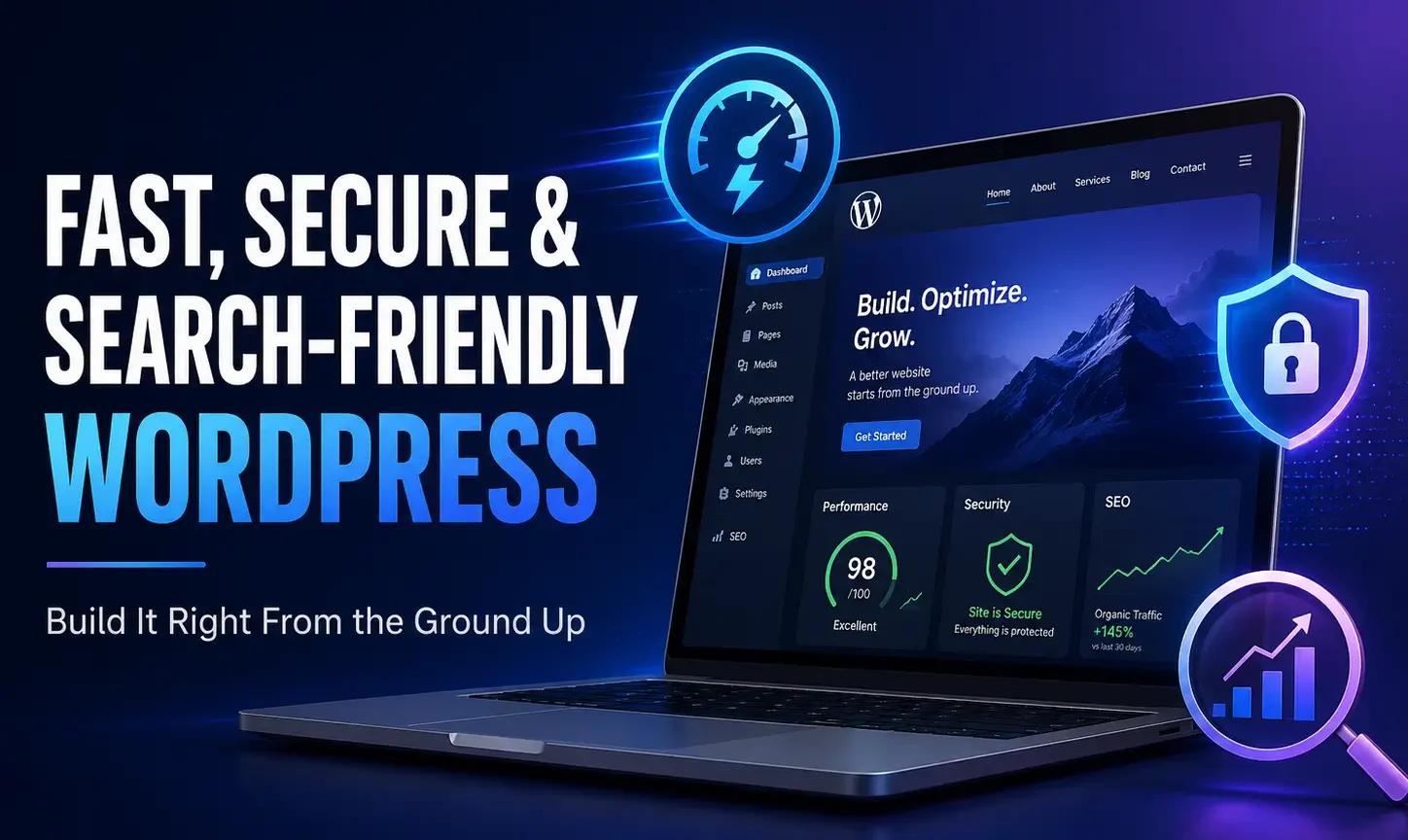
A fast, secure and search-friendly WordPress website is built long before the first visitor lands on the homepage. Hosting, theme choice, plugin discipline, URL planning, caching, media handling, security, backups and content structure all shape how the site performs after launch. A polished design can attract attention, but the technical foundation decides whether the site stays reliable when content, traffic and features grow.
WordPress is powerful because it can be simple or complex. The same platform can run a personal blog, a magazine, a business site, a documentation hub or an ecommerce store. That flexibility gives webmasters freedom, but it also creates risk. Every plugin, builder, tracking script and design feature adds another system to maintain. A website can start clean and become slow or fragile if decisions are made one feature at a time without a long-term plan.
A search-friendly WordPress site should be easy for visitors to use and easy for search engines to crawl, index and understand. Google’s public SEO guidance focuses on making content accessible and understandable while serving people-first pages. That idea fits WordPress perfectly: the best setup is not the one with the most plugins, but the one that helps the site publish useful content cleanly and maintain it safely.
Define the Website Purpose Before Choosing Tools
The first WordPress decision is not which theme to install. It is what kind of website is being built. A local business site, affiliate review site, blog, news portal, course platform and WooCommerce store all need different structures. The purpose determines hosting requirements, page templates, category planning, plugin choices and performance priorities.
A small service website may need excellent contact forms, clear landing pages and local trust signals. A content site needs strong article templates, archives, internal links and editorial workflows. An ecommerce site needs product schema, checkout performance, inventory reliability and secure payment handling. A membership site needs access control and account management. Starting with the purpose prevents the site from becoming a random collection of plugins.
Write down the core page types before building: homepage, category pages, article pages, service pages, product pages, comparison pages, contact pages and legal pages. Once those page types are clear, the webmaster can choose tools that support them instead of forcing the website into whatever the theme demo happens to show.
Choose Hosting That Matches Growth Plans
Hosting affects speed, uptime, security and maintenance. A budget shared plan may be acceptable for a small brochure site, but a growing WordPress website needs enough CPU, memory, database performance, caching support and backup reliability. Slow server response can make every template feel heavy even if the theme is optimized.
Good hosting should support current PHP versions, HTTPS, staging, daily backups, server-level caching and responsive support. For serious websites, staging is especially valuable because it allows plugin and theme updates to be tested before they touch the live site. Without staging, routine updates become riskier.
Hosting should be selected for the workload. A magazine site with many images and visitors needs different resources from a five-page portfolio. A WooCommerce store needs stable checkout performance and database reliability. A site expecting traffic spikes from social media or search should have caching and server capacity prepared before the spike arrives.
Hosting Evaluation Table
The following checks help compare WordPress hosting options without relying only on marketing claims.
| Hosting Feature | Why It Matters | What to Ask |
|---|---|---|
| Current PHP support | Modern PHP versions improve performance and security. | Which PHP versions are available and how are upgrades handled? |
| Backups | Recovery depends on usable restore points. | Are backups automatic, offsite and easy to restore? |
| Staging | Updates can be tested safely. | Can a staging copy be created and pushed selectively? |
| Caching | Server-level caching reduces load. | Is cache compatible with WordPress and ecommerce if needed? |
| Security support | Server rules help block common attacks. | Are malware scanning and firewall options included? |
| Scalability | Growing traffic needs room. | Can resources be upgraded without a painful migration? |
The cheapest plan is not always the best value. If poor hosting causes slow pages, database errors or difficult recovery, the hidden cost can be higher than the monthly savings.
Select a Theme for Clean Structure
A WordPress theme should be judged by more than screenshots. It controls templates, heading structure, responsive behavior, asset loading, layout flexibility and often schema output. A theme that looks impressive in a demo can become slow in production if it depends on heavy sliders, animation libraries and bundled plugins.
A good theme loads only what is needed, supports readable typography, handles mobile navigation well and gives editors stable templates. It should not trap every piece of content inside proprietary shortcodes that become unreadable if the theme is changed. Portability matters because a website may need a redesign later.
For content sites, article layout is more important than homepage animation. The reading area should be comfortable, headings should be clear, images should fit properly and related content should be useful. For business sites, landing pages and service templates need clean calls to action. For ecommerce, product pages and checkout usability matter more than decorative effects.
Theme Selection Checklist
Before committing to a theme, test it with real content rather than only demo pages. Add a long article, a table, a gallery, a contact form, a category archive and a mobile menu. Many weaknesses appear only when the theme has to handle realistic content.
| Theme Area | What to Check | Warning Sign |
|---|---|---|
| Performance | Asset size, global scripts and CSS weight | The theme loads large files on every page. |
| Mobile behavior | Menus, images, tables and buttons | Content requires zooming or horizontal scrolling. |
| Heading structure | One H1 and logical H2/H3 order | Headings are used only for styling. |
| Builder dependency | Content portability and editing workflow | Removing the builder breaks page content. |
| Update history | Recent releases and compatibility notes | No updates for a long period. |
| Accessibility basics | Contrast, focus states and keyboard navigation | Menus or forms are difficult to use without a mouse. |
Use Plugins Like a System, Not a Collection
Plugins solve problems, but they also add code, database tables, settings and update responsibilities. A search-friendly WordPress site does not need a plugin for every small idea. It needs a controlled plugin stack where each tool has a clear purpose and does not duplicate another tool’s job.
Start with essential functions: SEO management, caching or performance, security, backups, forms and any business-specific requirement. Avoid installing multiple plugins that all generate schema, all manage redirects or all inject optimization logic. Overlap can create duplicate meta tags, conflicting sitemaps, broken caching and confusing admin screens.
A plugin register is useful for serious sites. List each plugin, its purpose, whether it is essential, when it was last updated and what would break if it were removed. This simple record makes maintenance easier and helps future developers understand the site.
Plugin Risk and Maintenance Table
Plugin decisions should be based on function, quality and maintenance history rather than popularity alone.
| Plugin Type | Main Risk | Better Practice |
|---|---|---|
| SEO plugins | Duplicate metadata or schema if multiple tools overlap | Use one primary SEO plugin and configure it carefully. |
| Cache plugins | Broken layouts when scripts are delayed aggressively | Test changes on staging and exclude sensitive pages. |
| Page builders | Heavy assets and content lock-in | Use only when the design value justifies the weight. |
| Security plugins | False blocks or admin lockouts | Configure rules gradually and keep recovery access. |
| Form plugins | Spam, deliverability and script load | Use anti-spam protection and test email delivery. |
| Analytics plugins | Duplicate tracking events | Verify tags with browser tools and analytics reports. |
Unused plugins should be deleted, not simply deactivated forever. Outdated inactive code can still increase maintenance risk.
Plan Permalinks Before Publishing
Permalink structure should be chosen before the site grows. Changing URL patterns later requires redirects, testing and monitoring. A clean URL should be readable, stable and free from unnecessary words. For many content sites, a simple post-name structure works well because it keeps evergreen articles from looking dated.
Date-based URLs can make sense for news sites where publication timing is central. Category-based URLs can support hierarchy, but they become risky if categories are reorganized often. Product, documentation and service sites may need different structures. The key is to choose a system that matches the site and then keep it consistent.
Slug editing should be deliberate. A title can change without changing the URL. If a URL must change, the old address should redirect to the closest relevant new address. Random slug changes after publishing can create unnecessary redirect work and may weaken historical signals.
Build Categories and Tags with Rules
WordPress taxonomies can improve navigation or create clutter. Categories should represent major sections of the site. Tags should connect related posts across categories when those relationships are useful to readers. Creating a new tag for every keyword variation leads to thin archives and maintenance problems.
A strong category system starts with a small number of editorial pillars. A webmaster site might use WordPress, SEO, Hosting, Security, Performance, Analytics and Web Design. Each category should be broad enough to hold multiple strong posts but specific enough to guide readers. Category pages can be indexable when they contain useful descriptions and curated content.
Tags require stricter control. If a tag archive has one post and no unique context, it probably should not be indexed. Review tags periodically, merge duplicates and remove accidental variations. Taxonomy cleanup is easier when it becomes a routine task instead of a one-time rescue operation after years of publishing.
Set Up SEO Plugin Basics Carefully
An SEO plugin can manage titles, meta descriptions, XML sitemaps, canonicals, breadcrumbs and schema. It cannot decide content strategy by itself. The webmaster still needs to configure which post types and taxonomies should be indexed, which templates should appear in sitemaps and how title templates should be written.
Homepage metadata should describe the site clearly. Article titles should be written for people first while still reflecting search intent. Meta descriptions should summarize the value of the page without repeating the title word for word. XML sitemaps should include canonical, indexable URLs, not every technical URL generated by WordPress.
Check SEO plugin output on the front end. View the page source or use browser tools to confirm that titles, descriptions, canonicals and schema are present once, not duplicated. Plugin settings can look correct while another theme or plugin outputs competing metadata.
Indexing Settings for WordPress
WordPress can generate many page types: posts, pages, categories, tags, author archives, date archives, media attachment pages, search result pages and pagination. Not all of them should be indexed. A search-friendly setup chooses indexable areas intentionally.
| WordPress Area | Recommended Approach | Reason |
|---|---|---|
| Posts | Index useful original content | Articles are usually the core search assets. |
| Pages | Index important business and evergreen pages | They often answer commercial or informational intent. |
| Categories | Index only strong archives | Useful categories can support topical navigation. |
| Tags | Noindex unless curated and valuable | Weak tag archives create thin pages. |
| Author archives | Depends on author strategy | Useful for multi-author sites with real profiles. |
| Date archives | Usually noindex | They often duplicate chronological content. |
| Attachment pages | Noindex or redirect | They are commonly thin and accidental. |
Design Article Templates for Reading, Not Decoration
A WordPress article template should make long content comfortable. The title should set a clear promise. The introduction should explain the problem quickly. Headings should break the article into logical sections. Paragraphs should be readable on mobile. Tables should be usable without destroying the layout.
The H1 should normally be the post title. H2 headings should mark major sections, while H3 headings can support details inside those sections. Headings should not be used only because they look large. Screen readers, search engines and readers all benefit from a logical hierarchy.
A trustworthy article template may include an updated date, author information, table of contents, original screenshots, examples, clear outbound references, related posts and FAQ sections. These elements should support the article rather than distract from it. A page crowded with ads, popups and unrelated widgets can weaken the reading experience even if the text is useful.
Improve Core Web Vitals in WordPress
Core Web Vitals are practical because they highlight the parts of performance users feel most: loading, responsiveness and layout stability. WordPress sites often struggle with these metrics because themes, builders, plugins, fonts, images and tracking scripts stack on top of one another.
Largest Contentful Paint often depends on server response, the hero image, main heading visibility and render-blocking resources. Interaction to Next Paint can suffer when page builders, sliders, analytics scripts or ad scripts create long tasks. Cumulative Layout Shift often comes from images without dimensions, late-loading ads, cookie banners, embedded videos and font swaps.
The safest performance approach is gradual. Enable caching, optimize images, reduce plugin bloat, test scripts, reserve space for layout elements and verify each change on staging. Aggressive settings can break menus, forms, carts and analytics, so performance work should be measured rather than guessed.
WordPress Performance Checklist
The table below gives a practical order for improving speed without turning the site into a fragile experiment.
| Priority | Action | Why It Helps |
|---|---|---|
| 1 | Use page caching | Reduces server work for repeat page requests. |
| 2 | Compress and resize images | Large images are common speed bottlenecks. |
| 3 | Limit global plugin assets | Pages should not load scripts they do not use. |
| 4 | Optimize the main hero area | The above-the-fold content often controls LCP. |
| 5 | Reduce third-party scripts | External scripts can delay rendering and interaction. |
| 6 | Reserve space for media and ads | Prevents layout shifts while the page loads. |
| 7 | Clean the database carefully | Old revisions and transient data can add overhead. |
Always test after each change. A speed improvement that breaks the contact form, checkout or menu is not a real improvement.
Optimize Images Before They Become a Problem
Images are often the heaviest part of a WordPress page. Uploading full-resolution files directly from a camera or design tool can create unnecessary weight. Resize images before upload when possible, compress them, use appropriate formats and make sure templates serve the correct dimensions.
Featured images deserve special care because they often appear above the fold and can affect LCP. If the main image is delayed or oversized, the page may feel slow even when other assets are optimized. Do not lazy-load the most important above-the-fold image without testing its effect.
Alt text should describe meaningful images. A screenshot of a WordPress settings page should explain what the screenshot shows. A decorative background can use an empty alt attribute. Keyword stuffing in alt text does not help users and can make the site look careless.
Secure the Admin Area
WordPress security starts with reducing predictable attack paths. Use strong passwords, two-factor authentication, limited admin accounts and current software versions. Do not give administrator access to users who only need editor or author permissions. Remove unused themes and plugins instead of leaving old code in the installation.
The login area should be protected, but security tools must be configured carefully. Overly aggressive rules can block legitimate users, API requests or search engine access to public resources. Keep recovery access available and document how to disable a security plugin if it locks administrators out.
Security also includes file permissions, database credentials, HTTPS, malware monitoring and safe update habits. A site that is hacked may create hidden spam pages, malicious redirects or injected links. Search visibility can suffer quickly when trust is compromised.
Backups and Restore Testing
Backups are only useful if they can be restored. A WordPress backup should include the database, uploads, themes, plugins and configuration files. It should be stored away from the main server, kept in multiple versions and tested periodically.
A common mistake is relying on a backup plugin without checking whether the backup is complete. Another mistake is keeping backups only inside the same hosting account. If the hosting account fails or becomes compromised, those backups may be unavailable. Offsite storage adds resilience.
Restore testing should be part of maintenance. Create a staging copy from a backup and confirm that posts, media, menus, forms and plugin settings work. A tested restore process turns a crisis into a procedure.
Build Forms, Email and Conversion Paths Correctly
Forms are often where visitors become leads, subscribers or customers. A form that looks fine but fails to deliver email can silently waste traffic. Test form submissions, confirmation messages, spam protection, email routing and analytics events. Use SMTP where needed to improve reliability.
Conversion paths should be simple. A contact page should not distract users with unrelated content. A newsletter form should explain what the user will receive. A checkout should avoid unnecessary scripts and layout shifts. Trust signals such as privacy explanations, clear labels and working validation matter more than decorative effects.
Form plugins should be kept updated and protected from spam. CAPTCHA, honeypots, rate limits and email filtering can help, but they should not make the form frustrating for real users.
Structured Data for WordPress
Structured data can help search engines understand page entities and content types. WordPress sites commonly use Article, Breadcrumb, Organization, Product, FAQ, HowTo and LocalBusiness markup where relevant. The correct schema depends on the actual page, not on a desire to add every possible markup type.
SEO plugins and themes may output schema automatically. That is convenient, but it can also create duplication. If a theme adds Article schema, an SEO plugin adds another graph and a schema plugin adds a third version, the page may become messy. Validate important templates and remove conflicting outputs where possible.
Structured data should match visible content. Do not mark up FAQs that are not on the page, reviews that are not visible or product details that are inaccurate. Schema is a clarity tool, not a way to invent credibility.
Create Content Workflows That Stay Clean
A search-friendly WordPress website needs an editorial workflow, not just a publishing button. Each article should have a clear topic, search intent, original value, internal links, optimized images, a readable structure and a review process. Publishing many shallow posts can create more cleanup work later.
Content briefs are useful because they prevent overlap. Before writing a new article, check whether an existing page already answers the topic. If it does, update the existing article or create a clearly different angle. Multiple weak articles competing for the same intent can confuse both readers and search engines.
Update routines matter. Software tutorials, SEO guides and technical articles become outdated as interfaces and best practices change. Add review dates, track important posts and refresh screenshots, examples and recommendations when needed.
Prepare for Growth with Maintenance Rules
A WordPress site is never finished. Updates, content expansion, plugin changes, traffic growth and security threats keep changing the environment. Maintenance rules make the site easier to manage. Decide when updates are tested, who approves plugin additions, how backups are checked, how categories are created and how old content is reviewed.
A monthly maintenance routine might include updating plugins on staging, checking Search Console, reviewing 404 errors, testing forms, scanning for malware, checking backups and reviewing performance reports. A quarterly routine might include content pruning, taxonomy cleanup, internal link improvements and a deeper technical crawl.
Good maintenance prevents emergency work. It is easier to remove one unnecessary plugin now than to debug a conflict after a major update breaks the site. It is easier to merge duplicate tags monthly than to clean thousands of archives after years of neglect.
Launch Checklist for a Search-Friendly WordPress Site
Before launch, the webmaster should check the site as if it were already live. Visit it on mobile and desktop. Submit forms. Open category pages. Test menus. Inspect source code. Run performance checks. Crawl the site. Confirm HTTPS. Review robots.txt. Make sure the site is not accidentally noindexed.
| Launch Item | Status to Confirm |
|---|---|
| HTTPS | All pages and assets load securely. |
| Indexing | Important pages are indexable and low-value areas are controlled. |
| Sitemap | Canonical URLs are included and submitted. |
| Robots.txt | No important section is blocked accidentally. |
| Performance | Main templates are usable on mobile. |
| Forms | Submissions and email delivery work. |
| Analytics | Tracking is installed once and conversions are tested. |
| Backups | A current backup exists and restore access is known. |
Frequently Asked Questions
Can WordPress be fast enough for serious SEO?
Yes. WordPress can be very fast when hosting, theme structure, caching, images and plugin choices are handled carefully. Most speed problems come from poor implementation rather than WordPress itself.
How many plugins are too many?
There is no universal number. Ten poorly built or overlapping plugins can be worse than thirty well-maintained plugins with clear purposes. Quality, overlap and asset loading matter more than the count alone.
Should categories and tags be indexed?
Strong category pages can be indexed when they help users explore a topic. Tags should usually be noindexed unless they are curated, useful and supported by enough related posts.
What is the safest way to update WordPress?
Use backups, test updates on staging, update in a controlled order and verify important pages, forms, menus and checkout after changes. Avoid updating everything blindly on a critical production site.
Do SEO plugins automatically make a site rank?
No. SEO plugins help manage technical signals such as titles, sitemaps, canonicals and schema. Rankings still depend on useful content, crawlability, page experience, relevance and competition.
What should be checked before launching a new WordPress site?
Check HTTPS, indexing settings, sitemaps, robots.txt, mobile usability, performance, forms, backups, analytics, redirects and core page templates before launch.
Is a page builder bad for SEO?
A page builder is not automatically bad, but heavy builders can affect speed, markup and maintenance. Use them carefully, avoid unnecessary widgets and test real page performance.
Final Summary
A fast, secure and search-friendly WordPress website is the result of disciplined choices. Good hosting, a clean theme, controlled plugins, clear URLs, sensible taxonomy, reliable backups, strong security and useful content work together. None of these layers can be ignored for long without creating maintenance debt.
The best WordPress setup is not the most complicated one. It is the setup that lets the site publish confidently, load quickly, protect users and remain understandable to search engines as it grows.
WooCommerce and Commercial Site Considerations
When WordPress is used for ecommerce, performance and security become even more sensitive. Product pages, cart pages, checkout, account areas and payment flows must remain stable. Cache rules need to protect dynamic pages. A setting that improves blog page speed can break cart fragments, checkout validation or inventory updates if applied carelessly.
Product data should be consistent across the page, structured data and merchant feeds. A product title, price or availability status that differs between systems can create user confusion and quality problems. If a store uses variable products, test how variants appear in schema, search, filters and internal links.
Commercial WordPress sites also need careful plugin discipline. Payment plugins, shipping plugins, invoice tools, product feed plugins, review systems and marketing popups can all add scripts. The webmaster should test checkout after every optimization and update because a fast store that cannot process orders has failed at the most important task.
Content Architecture for Long-Term Publishing
A growing WordPress site needs a content map. Without one, editors may publish overlapping posts, create unnecessary tags and forget older pages that should be updated. A content map lists major topics, supporting articles, planned updates, internal link opportunities and pages that should become cornerstone resources.
Cornerstone pages should be broad enough to serve as hubs and detailed enough to deserve internal links. Supporting posts can answer narrower questions and link back to the hub. This structure helps readers move through the site naturally and gives editors a clear reason for each article to exist.
Long-term publishing also requires pruning. Not every old post should stay indexed forever. Some should be improved, some merged and some removed. A site that publishes regularly but never reviews old content can become harder to navigate and harder to trust.
Accessibility and Search-Friendly Design
Accessibility is not separate from webmaster work. Clear labels, readable contrast, keyboard navigation, descriptive link text and logical headings improve the experience for many users. They also encourage cleaner HTML structure, which supports search engines and assistive technologies.
A common mistake is designing only for visual impact. Text inside images, low-contrast buttons, unlabeled form fields and hidden focus states can make a site difficult to use. A search-friendly website should be usable by people with different devices, abilities and connection speeds.
Accessibility checks should be part of template approval. Test menus with a keyboard, review form labels, check color contrast, provide alt text for meaningful images and make sure dynamic content is announced or available in a usable way. These improvements make the site more professional and resilient.
Staging, Deployment and Change Control
A professional WordPress workflow separates testing from production. Staging environments let webmasters update plugins, change templates, test PHP versions and review performance settings before users are affected. This is especially important for sites that generate revenue or receive steady organic traffic.
Change control does not need to be complicated. Keep a simple log of updates, plugin additions, theme edits, redirect changes and SEO setting changes. If traffic drops or a form stops working, the changelog can reveal what changed recently. Without a changelog, troubleshooting becomes guesswork.
Deployment should be timed carefully. Avoid major changes right before peak sales periods, campaigns or important publishing windows. After deployment, test the homepage, top landing pages, forms, menus, search, checkout and analytics.
How to Avoid WordPress Bloat
Bloat usually appears slowly. A slider is added for one campaign, a popup for another, a font library for a redesign, a tracking script for advertising and a builder addon for a single layout. Months later, every page loads assets for features that appear only in one place.
Avoiding bloat requires asset awareness. Use browser developer tools or performance reports to see what loads on each template. Disable scripts where they are not needed. Replace large effects with simpler CSS where possible. Remove unused plugins, old shortcodes, abandoned widgets and duplicate tracking tools.
Design restraint helps performance. A clear layout, strong typography and useful content often outperform heavy animation. Visitors usually come to solve a problem, read information or complete a transaction. Every visual feature should earn its place.
A Sustainable WordPress Maintenance Calendar
A maintenance calendar turns good intentions into routine. Weekly checks can include updates that are safe, form testing, uptime review and backup confirmation. Monthly checks can include Search Console review, crawl errors, performance reports, broken links and plugin audits. Quarterly checks can include content pruning, taxonomy cleanup, internal link review and restore testing.
Annual reviews should look at hosting, theme direction, plugin dependency, analytics setup and content strategy. A site that worked well last year may need different resources after traffic growth, new monetization, more media or expanded categories.
Maintenance is not glamorous, but it protects the work already invested in the site. Many WordPress problems become expensive only because they were ignored for too long.
Additional WordPress Build Notes
A WordPress build should leave room for future editors. The admin area should be understandable, custom fields should be named clearly and reusable patterns should not require a developer for every small change. A site that only one person can manage becomes fragile when that person is unavailable.
Documentation can be simple but powerful. Record the hosting plan, plugin responsibilities, SEO settings, backup locations, form routing, cache exclusions and update process. When something breaks, this information reduces stress and prevents avoidable mistakes.
A search-friendly website grows through clean habits. Publish with intent, update old pages, test technical changes, remove clutter and protect performance. WordPress rewards disciplined management more than constant plugin experimentation.
The media library also needs ownership. Large sites often accumulate duplicate logos, unused screenshots, outdated banners and oversized files uploaded for one campaign. A quarterly media review can remove waste, replace obsolete screenshots and make image naming more consistent. This improves both editor workflow and page performance because future content creators are not choosing from a cluttered library.
User roles should be reviewed before the site becomes busy. Administrators should be limited to people who genuinely need full control. Editors can manage content, authors can write, and contributors can draft without publishing. This separation protects the site from accidental theme edits, plugin changes or settings changes made by users who only needed content access.
The search feature inside WordPress also deserves attention. If the built-in search is weak for a large content site, readers may fail to find useful articles that already exist. A better internal search setup, well-written category pages and thoughtful related links can keep visitors exploring instead of returning to external search results.
A mature WordPress website should feel boring in the best way: predictable updates, clear ownership, reliable backups, readable templates, stable performance and content that can be improved without rebuilding the system. That kind of boring reliability is exactly what allows a site to grow without losing control.
Editorial planning should also include ownership of updates. If an article explains a plugin setting, a performance metric or a security practice, someone should know when that article needs review. A simple spreadsheet with URLs, topics, last reviewed dates and priority levels can prevent valuable articles from becoming stale while newer but weaker posts receive attention.
Finally, avoid measuring the site only by launch-day appearance. A WordPress build succeeds when it remains usable after hundreds of posts, dozens of updates and several design changes. Clean templates, restrained plugins, careful taxonomy and steady maintenance make that possible. The site should be built for the editor who will manage it next month, not only for the visitor who sees the first version today.
This long-term view is what separates a stable WordPress website from a fragile collection of pages. When editors can publish without breaking layouts, developers can update without guessing, and visitors can move through the site without delays or confusing paths, the platform is doing its job. Search visibility then becomes easier to protect because the technical environment supports the content instead of constantly creating new cleanup work, avoidable downtime, duplicated effort and emergency repairs.