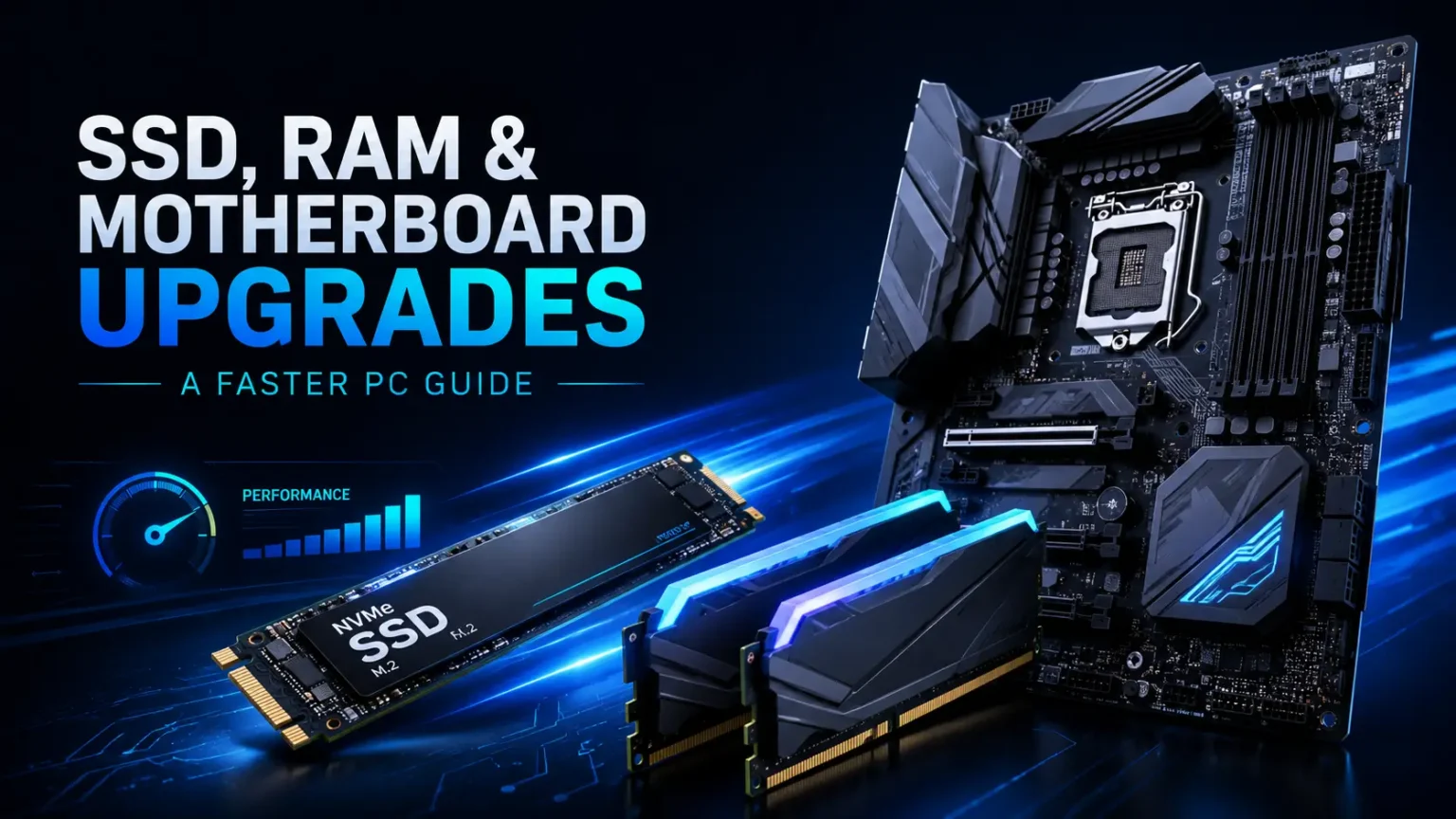
A PC upgrade should solve a real problem. Too many users replace parts because a benchmark looks old, not because the computer fails at a daily task. The smartest upgrades are the ones that remove friction: long boot times, full storage, stuttering games, slow project loads, browser tabs eating memory, missing ports, outdated firmware or a platform that blocks the next CPU and GPU. Storage, memory and the motherboard platform are often the difference between an aging PC that still feels capable and one that feels trapped in the past.
This guide focuses on three upgrade areas that affect everyday responsiveness: SSDs, RAM and motherboards. It explains when each upgrade matters, how to check compatibility, how to avoid buying parts your system cannot use and how to test the result. It also connects to two related Hardware Notice guides: the balanced gaming PC build guide for full-system planning and the complete PC cooling and airflow guide for keeping upgraded parts quiet and stable.
The evergreen rule is simple: upgrade the bottleneck you can feel. A faster SSD will not fix a weak GPU. More RAM will not repair a failing drive. A new motherboard may be unnecessary if the existing platform still supports the CPU, storage and memory you need. Diagnose first, buy second.
Diagnose the Bottleneck Before Buying
Start by writing down the symptoms. Slow booting, delayed app launches and long file transfers point toward storage. Stutter while many apps are open can point toward memory capacity. Poor frame rates may point toward the GPU or CPU, not necessarily RAM or storage. Missing modern ports, limited M.2 slots, old Wi-Fi, no TPM support or blocked CPU upgrades can point toward the motherboard platform.
Use Task Manager, Resource Monitor and hardware monitoring tools during the workload that annoys you. Watch memory usage, disk active time, CPU load, GPU load and temperatures. If the disk is pinned while the system feels frozen, storage is a likely upgrade. If memory is full and the page file is active, more RAM may help. If the CPU is at high utilization while the GPU waits, a platform upgrade may be more meaningful than a new SSD.
The best upgrade plan is based on evidence. A ten-minute measurement session can save hundreds of dollars by preventing the wrong purchase.
Upgrade Order: What Usually Helps First
For older PCs still using a hard drive as the system drive, an SSD is usually the first and most dramatic upgrade. It changes boot time, application launch speed, update behavior and general responsiveness. For systems that already have a small SSD but constantly run out of space, a larger SSD can improve convenience and prevent slowdowns caused by near-full storage.
Memory comes next when capacity is the limit. A PC with too little RAM will rely on storage as overflow, which feels slow even with an SSD. Upgrading capacity can reduce stutter, improve multitasking and help content creation workloads. Speed matters, but capacity and proper channel configuration matter first.
A motherboard upgrade is the biggest step because it often brings a new CPU socket, memory type and operating system requirements. It makes sense when the existing platform blocks meaningful CPU upgrades, lacks modern storage, has unreliable firmware or cannot support the features you need. It is less attractive when a simple SSD or RAM upgrade would solve the pain.
SSD Types: SATA, NVMe and External Drives
SATA SSDs are still useful for older desktops and laptops because they fit systems that lack M.2 NVMe slots. They are much faster than hard drives in responsiveness, even though their sequential speeds are limited by the SATA interface. For everyday boot and app use, moving from a hard drive to a SATA SSD can feel transformative.
NVMe SSDs connect through PCI Express and can offer much higher bandwidth and lower latency. They are the standard choice for modern desktops and laptops with M.2 slots. PCIe generation affects maximum speed, but real-world improvement depends on workload. A premium PCIe 5.0 drive may shine in heavy transfers, while a reliable PCIe 4.0 or PCIe 3.0 drive can still feel excellent for normal use.
External SSDs are convenient for backups, game libraries, media and portable projects. They are not ideal as a permanent system drive for most desktops, but they can extend storage without opening the case. Check USB speed carefully; the connector shape alone does not guarantee high performance.
Capacity Planning: Buy Enough Room to Breathe
Capacity is an upgrade people regret underbuying. Operating systems, game updates, creative applications, caches and project files grow over time. A drive that seems sufficient during installation can become cramped after a few large games and months of updates. When an SSD stays nearly full, performance and maintenance become less pleasant.
A practical desktop layout is one SSD for the operating system and main applications, plus another SSD for games, media or projects. Laptops with one slot may need a single larger drive. Leave free space for updates, temporary files and wear leveling. For many users, the best SSD upgrade is not the absolute fastest model but the drive that is large, reliable and affordable enough to keep plenty of free space.
Do not forget backups. More capacity often means more important data in one place. An upgrade plan should include an external backup drive, cloud backup or network storage. Speed is exciting; recoverability is essential.
SSD Endurance, DRAM and Controller Quality
SSD specifications can be confusing, but a few details matter. Endurance ratings help estimate how much data can be written over the life of the drive. Most normal users will not exhaust a reputable SSD quickly, but heavy video editing, scratch disks and large file workflows should pay attention. Warranty length and brand support also matter.
Some SSDs include DRAM cache, while others rely on host memory buffer or controller strategies. DRAM-less drives can still be good, especially for budget or secondary use, but sustained write performance may vary. Reviews that include full-drive write behavior are useful because short benchmark bursts do not show how a drive behaves when the cache is exhausted.
Thermals also matter for high-performance NVMe drives. A fast controller can throttle if it overheats. Use the motherboard heatsink where appropriate and make sure thermal pads contact the drive correctly.
Cloning vs Clean Installation
When replacing a system drive, you can clone the old drive or perform a clean installation. Cloning preserves the current operating system, apps and files, which saves time. It is useful when the existing installation is healthy and you simply need more speed or space. The downside is that old clutter, driver leftovers and hidden problems are copied too.
A clean installation takes longer but creates a fresh software environment. It is often better when moving to a new motherboard, changing platforms or fixing years of accumulated issues. Back up important data, export browser bookmarks, record license keys where needed and prepare installation media before removing the old drive.
After migration, keep the old drive untouched for a short period until the new installation is verified. This gives you a fallback if a file was missed or the clone fails to boot.
RAM Capacity: The Upgrade You Feel When You Were Running Out
RAM helps when the system lacks enough working space. Modern browsers, game launchers, voice chat, creative applications and background tools can consume memory quickly. When RAM fills, the operating system uses storage as overflow, which is much slower. Even with a fast SSD, paging can cause stutter and delays.
Capacity should match workload. Light office and browsing machines need less than gaming and creator systems. Games with high-resolution textures, modded environments or background streaming tools can benefit from more memory. Content creation, virtual machines, large photo libraries and code compilation can require even more.
The key test is usage during your real workload. If memory usage regularly approaches capacity and performance drops, adding RAM is a practical upgrade. If memory usage is moderate, a faster kit may deliver only small gains compared with other upgrades.
Dual Channel, DIMM Slots and Matched Kits
Memory bandwidth depends on channel configuration. Two matching sticks in the correct slots usually enable dual-channel operation on mainstream desktops, improving bandwidth compared with a single stick. Motherboard manuals identify the preferred slots, often the second and fourth slots from the CPU for a two-DIMM configuration.
Mixing memory modules can work, but it increases the chance of speed, timing or stability issues. A matched kit is tested together and is the safer choice. When adding RAM to an existing kit, try to match capacity, speed, timings and voltage, but understand that the system may still run at the lowest common settings.
For laptops, check whether memory is soldered, how many slots exist and what capacity the system supports. Some thin laptops cannot be upgraded at all, making storage the only practical internal upgrade.
DDR4 vs DDR5: Platform Decides
DDR4 and DDR5 are not interchangeable. The motherboard determines which memory type is supported. A platform upgrade may require new memory even if your old kit is still functional. This is one reason motherboard upgrades should be planned as platform upgrades, not isolated board swaps.
DDR5 offers higher bandwidth potential and is common on newer platforms, while DDR4 remains useful for many existing systems. The best choice is not a moral question; it is a compatibility and value question. If an older DDR4 platform still meets your needs, adding capacity may be smarter than rebuilding. If you are moving to a newer CPU socket, DDR5 may be part of the platform cost.
Memory speed should be realistic. Very high speeds can require stronger memory controllers, BIOS maturity and manual tuning. A stable, recommended-speed kit often produces a better ownership experience than chasing a number that causes random crashes.
XMP, EXPO and Stability Testing
Memory kits often ship with a default safe speed and an optional performance profile such as XMP or EXPO. Enabling the profile in BIOS lets the memory run at its rated settings, but stability is not guaranteed in every CPU and motherboard combination. Treat the profile as a configuration to test, not a promise to ignore.
After enabling a profile, run memory stability tests and use the PC normally for several days. Watch for application crashes, game exits, blue screens or file corruption. If instability appears, update BIOS, reduce speed slightly or use more conservative timings. Stability matters more than a small benchmark gain.
Keep BIOS notes. If a future update resets settings, you will know which profile and options were stable. This is especially useful for systems maintained over many years.
Motherboard Upgrade: When It Is Worth It
A motherboard upgrade makes sense when the old platform blocks the CPU, memory, storage, connectivity or firmware features you need. Examples include no NVMe support, limited PCIe lanes, weak VRM for a desired CPU, no modern USB, unreliable networking, lack of TPM support for supported operating systems or no BIOS path for newer processors.
It is not worth replacing a motherboard just to change aesthetics or gain a single unused feature. The board itself rarely makes a PC faster unless it unlocks a better CPU, faster memory, more storage or stable power delivery. Treat it as the foundation for a platform, not as a performance part by itself.
When moving to a new motherboard, plan for CPU, memory, cooler mounting, operating system activation, BIOS settings and driver cleanup. A board swap can become a near-rebuild, so schedule time accordingly.
Socket, Chipset and BIOS Compatibility
The CPU socket must physically and electrically match the processor. The chipset determines features such as lanes, USB, storage support, overclocking options and sometimes multi-GPU or expansion behavior. Even when the socket matches, BIOS support may be required for a newer CPU. Some boards need an update before they can boot with certain processors.
BIOS flashback features can be valuable because they allow firmware updates without a supported CPU installed. If the board lacks this feature and ships with old firmware, you may need an older CPU to update it. Check seller listings, manufacturing date and board support pages before buying.
Read the CPU support list, memory support notes and storage lane tables. Compatibility is not only about whether parts fit; it is about whether the system runs all parts at the expected speed without disabling something important.
TPM, Secure Boot and Operating System Requirements
Modern operating systems may require firmware and security features such as TPM 2.0 and Secure Boot. Many modern motherboards support firmware TPM options, but older systems may lack official support or require BIOS configuration. This matters when upgrading from an older Windows installation or preparing a system for long-term support.
Before replacing hardware, check whether the current platform supports the operating system you intend to run. Enabling Secure Boot can require changing boot mode, drive partition style or firmware settings. Make backups before making firmware changes, especially on systems with important data.
A motherboard upgrade can solve platform security requirements, but it should be planned carefully because it may affect activation, drivers and boot configuration.
PCIe Lanes, M.2 Slots and Bandwidth Sharing
PCIe lanes connect the CPU and chipset to devices such as graphics cards, SSDs, network cards and capture cards. A motherboard may advertise several M.2 slots, but not all slots have the same bandwidth or source. Some connect directly to the CPU; others connect through the chipset. Some share lanes with SATA ports or PCIe slots.
Lane sharing is normal, but surprises are avoidable. Read the manual table that explains what happens when each slot is populated. You may discover that using a certain M.2 slot disables two SATA ports or changes a PCIe slot from x16 to x8. For most gaming systems, x8 on a modern interface may not be a major problem, but the point is to know before installing.
Creators with capture cards, fast networking and multiple SSDs should pay extra attention. A board that is fine for gaming may be limiting for expansion-heavy work.
Power and Cooling After Upgrades
Storage and memory upgrades usually do not demand a new power supply, but platform upgrades can. A new CPU, more powerful GPU or additional drives increase load. Check PSU wattage, connector availability, age and quality. The balanced PC build guide explains why PSU quality and connector planning deserve attention before a GPU upgrade.
Cooling should be rechecked after any major upgrade. A faster CPU may run hotter than the old one. A new motherboard may apply different power limits by default. More SSDs under heatsinks may change local temperatures. Cable routing after a rebuild can block airflow that used to be clear.
After upgrades, repeat baseline temperature tests. Do not assume the old fan curves are still ideal. A small adjustment can make the upgraded PC quieter and more stable.
Laptop Upgrade Limits
Laptops are more limited than desktops. Many allow SSD replacement, some allow memory upgrades and very few allow meaningful CPU or GPU changes. Thin laptops often use soldered memory, making the purchase configuration permanent. Before buying parts, check the service manual, user reports and warranty terms.
M.2 drive length is important in laptops. Some support common 2280 drives, while others use shorter formats. Thermal pads, shields and brackets may be required. Reusing the original thermal pad placement can help preserve cooling. Be careful with battery disconnection and static-safe handling.
A laptop RAM upgrade can be excellent when slots exist, but mixed soldered and removable memory may run in partial dual-channel modes depending on configuration. Read platform-specific details rather than assuming desktop rules apply exactly.
Older PCs: When an Upgrade Is Still Worth It
Older systems can still benefit from targeted upgrades. A hard-drive-based office PC can feel dramatically better with a SATA SSD and enough RAM. A previous-generation gaming PC may need only a larger SSD and a GPU refresh. A family computer may become more reliable with a clean installation and a new drive rather than a full replacement.
However, there is a point where upgrades become poor value. If the platform lacks modern instruction support, receives no security updates, cannot run the operating system you need, uses rare memory or has a weak power supply and proprietary case, replacement may be smarter. The value of your time matters too.
A good test is the total upgrade cost compared with a modern platform. If you must replace the motherboard, CPU, memory, power supply and case to solve the problem, you are effectively building a new PC.
Workload-Based Upgrade Advice
For gaming, prioritize GPU and CPU balance first, then make sure memory capacity and SSD space are not causing stutter. A larger NVMe drive can improve convenience and reduce load delays, but it will not replace the need for adequate graphics performance. For competitive titles, CPU and memory behavior may matter more than maximum SSD speed.
For content creation, storage layout and memory capacity become more important. A fast project drive, a separate cache drive and enough RAM can reduce waiting. For video editing, endurance and sustained write speed matter more than a short peak benchmark. For photo work, capacity and backup workflow matter as much as drive speed.
For office and school use, the highest-value upgrades are often simple: SSD, enough RAM and a clean operating system. A modest PC with responsive storage can feel better than a more powerful machine slowed by a hard drive and cluttered software.
Used Upgrade Parts
Used memory and CPUs can be safe buys when the seller is reputable and the parts are tested. Used motherboards are riskier because socket pins, BIOS state, ports and hidden damage matter. Always ask for clear photos of the socket, rear I/O, memory slots and accessories. Missing I/O shields, antennas, M.2 screws or cooler brackets can create extra costs.
Used SSDs require health checks. Ask for SMART data when possible, including power-on hours, total writes and remaining life. Avoid drives with unknown history for important data unless the price is low enough and backups are strong. A cheap used SSD without warranty may be fine for a game library but not for critical work.
Refurbished parts from a store with return rights can be safer than private sales. The best deal is not the lowest price; it is the part that works reliably and can be returned if it does not.
Installation Steps for an SSD Upgrade
- Back up important files before opening the PC.
- Confirm the drive type, size and interface supported by the system.
- Prepare cloning software or operating system installation media.
- Power down, unplug the system and discharge residual power.
- Install the SSD carefully, using the correct screw, standoff or tray.
- Apply the heatsink or thermal pad if required, removing protective film first.
- Boot into BIOS and confirm the drive is detected.
- Clone the old drive or install the operating system cleanly.
- Update drivers and verify boot order.
- Keep the old drive intact until the new setup is confirmed.
Installation Steps for a RAM Upgrade
- Check the motherboard or laptop manual for supported memory type and capacity.
- Buy a matched kit when replacing memory completely.
- Use the recommended slots for two-stick desktop configurations.
- Seat each module firmly until the latches close.
- Boot at default settings first and confirm capacity is detected.
- Enable the memory profile only after basic boot success.
- Run stability tests and use real workloads for several days.
- Keep old modules temporarily in case troubleshooting is needed.
Installation Steps for a Motherboard Upgrade
A motherboard upgrade is closer to rebuilding the PC than swapping a drive. Photograph the old cable layout before disassembly. Back up data. Confirm CPU cooler brackets, memory type, case standoffs, front-panel connectors, fan headers and PSU cables. Remove the GPU and expansion cards first, then disconnect power, storage and front-panel cables. Take the old board out carefully and check that standoffs match the new board layout before installation.
After the new board is installed, connect only essentials for the first boot: CPU, cooler, one memory kit, boot drive, GPU if required, keyboard and monitor. Enter BIOS, check temperatures, set boot mode and confirm storage detection. Install chipset and network drivers after the operating system loads. Expect Windows or other operating systems to detect significant hardware changes.
Do not rush cable management before the first successful boot. It is easier to troubleshoot with accessible cables. Once the system is stable, finish routing and tie-downs.
Testing After Any Upgrade
Testing protects your data and time. After an SSD upgrade, check drive health, run a short benchmark, copy a large file and confirm that the system boots reliably. After a RAM upgrade, run memory tests and use the workloads that previously caused problems. After a motherboard upgrade, test CPU stability, memory stability, storage detection, USB ports, network connection, audio and sleep behavior.
Watch Event Viewer or system logs for repeated errors. A PC can appear stable while quietly logging storage resets or memory warnings. Fix small issues early because they often become larger under pressure.
Keep packaging until the return window closes. A methodical test routine makes returns easier because you can describe the problem clearly.
Common Upgrade Mistakes
- Buying an NVMe drive for a system that only supports SATA M.2.
- Forgetting that some M.2 slots disable SATA ports when populated.
- Mixing memory kits and expecting rated speeds automatically.
- Buying DDR5 for a DDR4 motherboard or the reverse.
- Replacing the motherboard without checking CPU cooler mounting hardware.
- Assuming a new board will boot an old Windows installation cleanly.
- Ignoring BIOS updates required for CPU support.
- Underestimating backup time before cloning or reinstalling.
- Installing an SSD heatsink without removing thermal-pad film.
- Forgetting to enable the memory profile after confirming stability.
Practical Upgrade Paths
For a hard-drive desktop, the best path is usually SATA SSD first, then memory if usage is high, then a clean installation. This can revive an office or school PC for modest cost. For a gaming PC with a small SSD, add a larger NVMe game drive if the platform supports it, then evaluate GPU and CPU balance. For a creator system, plan multiple drives: operating system, active projects, cache and backup.
For a platform that is still strong but short on features, a motherboard swap may not be enough. Sometimes a USB expansion card, Wi-Fi card or storage adapter solves the problem. Other times the platform is old enough that a CPU, motherboard and memory bundle is the cleaner answer.
The most satisfying upgrades are the ones that extend the life of a system without creating new weak links. Buy for the next two or three years of actual use, not for a hypothetical workload that may never arrive.
Final Checklist Before You Upgrade
- The upgrade solves a measured problem, not just a benchmark insecurity.
- Backups are complete and verified before storage or motherboard work.
- The system supports the exact SSD interface, length and generation you plan to buy.
- The memory type, capacity, speed and slot layout match the platform.
- The motherboard supports the CPU with the installed or updateable BIOS version.
- TPM, Secure Boot and operating system requirements are understood.
- Power supply connectors and wattage still fit the upgraded platform.
- Cooling and case clearance are checked again after new parts are selected.
- Testing time is planned before the PC is needed for important work.
- Old parts are kept temporarily until the new configuration proves stable.
Frequently Asked Questions
Will an SSD make my PC faster?
Yes, when the current system drive is a hard drive or a slow, nearly full SSD. An SSD improves boot time, app launches, updates, file browsing and general responsiveness. It will not directly fix a weak GPU or CPU, but it can make the entire system feel more modern.
Should I upgrade RAM speed or RAM capacity?
Capacity comes first when you are running out of memory. More speed can help in some CPU-sensitive workloads, but it is usually less important than having enough RAM and running it in the correct channel configuration. A stable matched kit is the safest upgrade.
Can I use any M.2 SSD in any M.2 slot?
No. M.2 describes the form factor, not the protocol. Some slots support NVMe, some support SATA and some support both. Length, keying and lane generation also matter. Always check the motherboard or laptop manual before buying.
Do I need a new motherboard for a faster SSD?
Only if the current platform lacks the slot or bandwidth you need. Many systems can accept an NVMe drive through an existing M.2 slot, while others may use a PCIe adapter. Very old systems may be better served by a SATA SSD or a broader platform upgrade.
Is a motherboard upgrade difficult?
It is manageable but more involved than adding RAM or storage. You must consider CPU socket, cooler mounts, memory type, case standoffs, power cables, BIOS, drivers and operating system activation. Treat it like a partial rebuild and allow time for testing.
What should I do before cloning a drive?
Back up important files, clean unnecessary data, check the health of the old drive and confirm the new drive has enough capacity. After cloning, boot from the new drive and verify applications and files before erasing the old one.
SMART Data: Read Drive Health Before and After Upgrading
SMART data provides useful clues about SSD and hard-drive health. Before cloning an old drive, check reallocated sectors on hard drives, media errors on SSDs, power-on hours, unsafe shutdowns and total data written. A failing source drive should be backed up before any stressful cloning attempt because large sequential reads can expose weakness.
After installing a new SSD, check that health reports are normal and that the drive is running at the expected link speed. A drive installed in the wrong slot or limited by BIOS settings may work but underperform. Health monitoring is not a replacement for backups, but it helps catch obvious issues early.
TLC, QLC and Why NAND Type Matters
Consumer SSDs commonly use different NAND types, and the choice can affect endurance and sustained write behavior. TLC drives are often preferred for primary drives and heavier workloads because they usually offer a strong balance of performance and endurance. QLC drives can provide attractive capacity for the price, but sustained writes may slow significantly after cache is exhausted.
This does not make QLC bad. A large QLC SSD can be excellent for a game library, media storage or light everyday use. For a system drive, editing scratch disk or heavy write workload, a higher-end TLC drive may be worth the premium. Match the drive to the job instead of treating every SSD as identical.
SLC Cache Behavior in Plain English
Many SSDs write quickly at first because they use a portion of flash as a faster cache. Once that cache fills, sustained write speed can drop. Short benchmarks may only show the fast portion, while real tasks such as copying hundreds of gigabytes reveal the slower behavior. This is why large file-transfer tests matter in reviews.
For gaming, cache exhaustion may rarely matter. For video editing, backups, large downloads or moving project folders, it can matter a lot. Choose a drive with sustained performance appropriate to the largest files you handle, not just the highest advertised peak speed.
Partitioning and Folder Strategy
Partitioning is optional, but organization is not. Some users like separate partitions for the operating system and data, while others prefer separate physical drives. Physical separation is usually more useful because it can improve backup clarity and prevent a full game library from crowding the system drive.
A simple structure works well: system and apps on the main drive, games on a second SSD, active projects on a fast drive and archives on bulk storage. Use clear folder names and avoid scattering important files across download folders, desktops and random launcher directories. Good organization makes future upgrades easier.
Backups Are Part of the Upgrade, Not an Extra
Every storage upgrade creates a moment of data risk. Drives are opened, cloned, erased, resized and reinstalled. A backup should exist before the first screw is removed. Ideally, important files should be stored in at least two places, with one copy disconnected or cloud-based so accidental deletion or malware cannot destroy everything at once.
Test the backup by opening a few files. A backup that has never been verified is only a hope. For irreplaceable work, use a more formal 3-2-1 approach: three copies, two different media types and one off-site copy. It sounds boring until it saves a project.
UEFI, CSM and Boot Mode Surprises
Older systems may boot in legacy mode, while modern platforms prefer UEFI. Secure Boot and some operating system features require UEFI boot with the correct partition style. When moving drives between platforms or enabling Secure Boot, boot mode can become a problem. A cloned drive may not appear as bootable if the firmware mode does not match.
Before changing BIOS boot settings, back up data and understand whether the drive uses MBR or GPT partitioning. Some tools can convert, but mistakes can make the system unbootable. A clean installation on a new SSD often avoids years of legacy configuration problems.
Driver Cleanup After a Platform Change
A motherboard swap can leave old chipset, network, audio and storage drivers behind. Modern operating systems handle many changes automatically, but a clean driver setup is still recommended. Install the new chipset driver, network driver, audio driver and any required storage or Wi-Fi packages from trusted sources.
When the old installation behaves strangely after a board swap, a clean installation may be faster than chasing conflicts. This is especially true when moving between very different CPU platforms or from an old legacy installation to a modern UEFI setup.
PCIe Adapter Cards for Extra NVMe Drives
A PCIe-to-M.2 adapter can add NVMe storage to a desktop with a free PCIe slot. This can be useful when the motherboard has limited M.2 slots. However, the adapter needs enough lanes, the slot must support the required bandwidth and boot support depends on the motherboard firmware. Some older systems can use an adapter as secondary storage but cannot boot from it easily.
Multi-drive adapter cards may require PCIe bifurcation support, which not every motherboard provides. Read the board manual before buying. A simple one-drive adapter is usually easier than a four-drive card that the platform cannot address correctly.
Memory Ranks and Module Layout
Memory performance is affected not only by speed and capacity but also by rank configuration. Dual-rank modules can behave differently from single-rank modules, and four-DIMM configurations can be harder for the memory controller than two-DIMM configurations. Most mainstream users do not need to obsess over ranks, but it explains why two kits with the same headline speed can behave differently.
For stability, prefer a matched two-stick kit at the capacity you need. Four sticks can look better and increase capacity, but they may require lower speeds or more tuning. Check the motherboard manual for recommended configurations and keep expectations realistic.
ECC Memory and Workstation Needs
Error-correcting memory is useful in systems where data integrity matters, such as certain workstations, servers and professional environments. It can detect and correct some memory errors, reducing the risk of silent corruption. Support depends on the CPU, chipset and motherboard, so it cannot be added to any random desktop.
For gaming and everyday use, standard non-ECC memory is normal. For professional work involving long computations, critical datasets or always-on services, ECC support may influence platform choice. This is another example of choosing hardware based on workload rather than marketing labels.
Motherboard Form Factors
ATX, microATX and mini-ITX boards differ in size, expansion slots and layout. ATX offers the most room for expansion. MicroATX can be excellent value for mainstream builds. Mini-ITX enables compact systems but usually limits memory slots, PCIe expansion and sometimes M.2 quantity. The case must support the chosen form factor.
A smaller board in a larger case can work, but cable routing and appearance may not be ideal. A larger board in a small case will not fit at all. Choose form factor based on case, expansion needs and build difficulty. Compact builds are attractive, but they demand more planning.
Rear I/O and Front-Panel Compatibility
Rear I/O determines how many devices can connect without hubs. Count USB-A, USB-C, audio, Ethernet, display outputs for integrated graphics, antenna connectors and BIOS flashback buttons. Front-panel compatibility matters too. A case with front USB-C needs the correct motherboard header, or the port will be decorative unless you buy an adapter.
This is a common upgrade frustration: the new case has modern front I/O, but the board lacks the header. Check both sides before buying. Practical connectivity often matters more than decorative heatsinks.
Networking Upgrades: Wi-Fi, Bluetooth and Ethernet
A motherboard with modern Wi-Fi and Bluetooth can reduce adapter clutter, but Ethernet remains preferred for stable low-latency gaming and large transfers when wiring is practical. If the board lacks the networking you need, PCIe cards and USB adapters can help, but driver quality and antenna placement matter.
Do not place antennas behind a metal desk or trapped against a wall and expect perfect signal. For desktop Wi-Fi, a movable antenna base can improve reception. For serious home networking, upgrading the router or using wired backhaul may help more than changing the PC adapter.
Firmware Updates for SSDs and Motherboards
Firmware updates can improve compatibility, stability and security, but they should be applied carefully. Read release notes. Use a stable power source. Do not interrupt the update. For motherboards, update BIOS when it solves a real issue, supports a CPU, improves memory compatibility or addresses a security concern.
For SSDs, manufacturer tools may provide firmware updates and health information. Back up important data before firmware changes. Most updates are uneventful, but the small risk is enough to justify caution.
Power Protection During Upgrades
A stable power environment protects hardware and data. Use a quality surge protector at minimum, and consider a UPS for systems used for work, areas with frequent outages or firmware updates. Sudden power loss during BIOS flashing, cloning or large file operations can create serious problems.
This is especially relevant for users who work from home. A UPS does not make the PC faster, but it can prevent corrupted work, failed updates and unexpected shutdowns. Reliability is part of a professional upgrade strategy.
Reuse, Resell or Recycle Old Parts
Old parts can still have value. A replaced SSD may become a backup drive in an enclosure. Old RAM can support another compatible system. A previous motherboard and CPU can become a home server, test bench or family PC. Reselling working parts can offset upgrade costs.
Broken electronics should be recycled responsibly rather than thrown away. Keep anti-static bags and boxes from new parts so old components can be stored or shipped safely. A tidy upgrade process includes a plan for what leaves the system, not just what enters it.
A Simple Upgrade Worksheet
| Question | Why it matters | Write your answer |
|---|---|---|
| What feels slow? | Prevents buying the wrong part | Boot, games, apps, transfers, multitasking or ports |
| What is the current platform? | Defines CPU, RAM and motherboard compatibility | Socket, chipset, BIOS version and memory type |
| How much storage is free? | Shows whether capacity is the issue | System drive and secondary drives |
| How much memory is used? | Shows whether RAM capacity is limiting | Usage during real workload |
| What upgrade can move to the next PC? | Protects long-term value | SSD, PSU, case, cooler or GPU |
Filling out this worksheet before shopping makes the upgrade more deliberate. It turns vague frustration into a parts plan. The best upgrade is rarely the one with the loudest marketing; it is the one that removes the exact limitation you measured.
Final Thought: Upgrade for Responsiveness, Stability and Headroom
A faster PC is not only a machine with higher benchmark numbers. It boots cleanly, launches apps without delay, keeps enough memory free, stores projects without constant cleanup, supports the operating system securely and leaves room for the next component. SSDs, RAM and motherboards shape that experience more than many users realize.
When the upgrade is chosen carefully, an older PC can feel new again. When the upgrade is chosen blindly, money disappears and the original problem remains. Measure, plan, back up, install calmly and test thoroughly. That process is the real performance upgrade.
Game Library Management After a Storage Upgrade
A larger SSD invites users to install everything and forget about organization. That is convenient at first, but a crowded library can make backups, updates and file management messy. Decide which drive stores active games, which stores rarely played titles and which holds captures or mods. Many launchers allow library folders to be moved without reinstalling every game from scratch.
Keep at least some free space on each SSD. This helps updates unpack properly and prevents last-minute cleanup before installing a large patch. Storage upgrades feel best when they remove maintenance pressure rather than simply delaying it for a few months.
Scratch Disks and Cache Drives for Creators
Creative applications often use temporary cache, preview and scratch files. Putting those files on a fast SSD with enough free space can improve workflow smoothness and reduce wear concentration on the system drive. Video editors, photo editors and audio producers should check application settings after adding a drive.
A separate scratch drive is not mandatory for everyone, but it can be valuable for large projects. The best setup depends on project size, media bitrate and backup workflow. Do not store the only copy of important work in a temporary cache location.
Operating System Activation After Hardware Changes
A major motherboard change can trigger operating system activation checks because the board is a core identity component of the PC. Before swapping, link the license to the proper account where supported and record any license information. This prevents panic after the first boot.
Activation issues are usually solvable, but they can interrupt work. Plan for them as part of the upgrade, especially when replacing a prebuilt motherboard or moving from an old platform to a custom build.
Prebuilt PCs and Proprietary Limits
Prebuilt desktops can have proprietary motherboards, power supplies, front-panel connectors or case layouts. This can make normal upgrades harder. Before buying a standard motherboard or PSU for a prebuilt case, confirm mounting points, connector pinouts, cooler clearance and BIOS limitations.
Some prebuilts are upgrade-friendly, while others are best treated as complete systems with limited internal changes. Storage and memory are usually easier than motherboard swaps. When proprietary limits become too restrictive, moving parts into a standard case with a standard PSU may be cleaner.
Thermal Impact of More Drives and Memory
Adding SSDs and memory usually creates less heat than upgrading a CPU or GPU, but dense systems can still warm up. Multiple NVMe drives under the GPU, four memory modules near a large air cooler and crowded cable paths can change local airflow. After installing upgrades, check motherboard, SSD and memory temperatures where sensors are available.
A small airflow adjustment may be enough. Sometimes moving an SSD to a cooler slot or adding gentle front intake solves the issue. Do not assume storage and memory upgrades are thermally invisible.
Document the Upgrade for Future You
Keep a simple note with part names, serial numbers, BIOS version, memory settings, drive layout, BitLocker or encryption status and warranty dates. Store receipts and manuals digitally. This documentation saves time during troubleshooting, resale or the next upgrade cycle.
Future you will not remember every BIOS setting or which M.2 slot shares bandwidth with SATA ports. A five-minute note after the upgrade can prevent an hour of confusion later.
Upgrade Timing Around Sales and New Platforms
Storage and memory prices move over time, and platform launches can change motherboard value quickly. A sale is useful only when it matches the upgrade plan. Buying a discounted SSD you do not need, or memory that does not fit the next platform, is not saving money. Keep a short list of exact compatible parts so that a real discount can be recognized quickly.
For motherboard platforms, avoid buying only because a new chipset exists. Buy when the platform gives you the CPU support, memory support, storage layout and firmware features you need. A mature board with stable BIOS can be better than a brand-new board that still needs several updates to reach its best behavior.
Security and Encryption Before Hardware Work
Systems using drive encryption need extra care before storage or motherboard changes. Save recovery keys, suspend encryption when appropriate and confirm account access before opening the PC. A motherboard swap or firmware setting change can trigger recovery prompts. Without the key, your own data may become inaccessible.
This step is easy to forget because it is not a hardware specification. It is still part of a professional upgrade process. Backups, recovery keys and login access should be verified before the old configuration is disturbed.
The Best Upgrade Leaves Fewer Problems Than It Creates
A successful SSD, RAM or motherboard upgrade should make the computer simpler to use. It should reduce waiting, reduce storage anxiety, improve stability or open a clear path for future parts. If the upgrade adds adapters, heat, cable clutter and driver confusion without solving the original problem, it was the wrong upgrade or the wrong timing.
Measure the pain, choose the part that addresses it directly and keep the system maintainable. That approach may sound conservative, but it is how older PCs become dependable again without turning every improvement into a second project.
Do Not Erase the Old Drive Too Quickly
After a storage migration, keep the old drive unchanged until the new system has survived several restarts, updates and real work sessions. Forgotten documents, save files, configuration folders and license files often appear only after the user launches an older application. The old drive is a temporary safety net.
Once everything is verified and backed up, the old drive can be wiped, repurposed or stored. Rushing this step is one of the easiest ways to turn a successful upgrade into a recovery project.